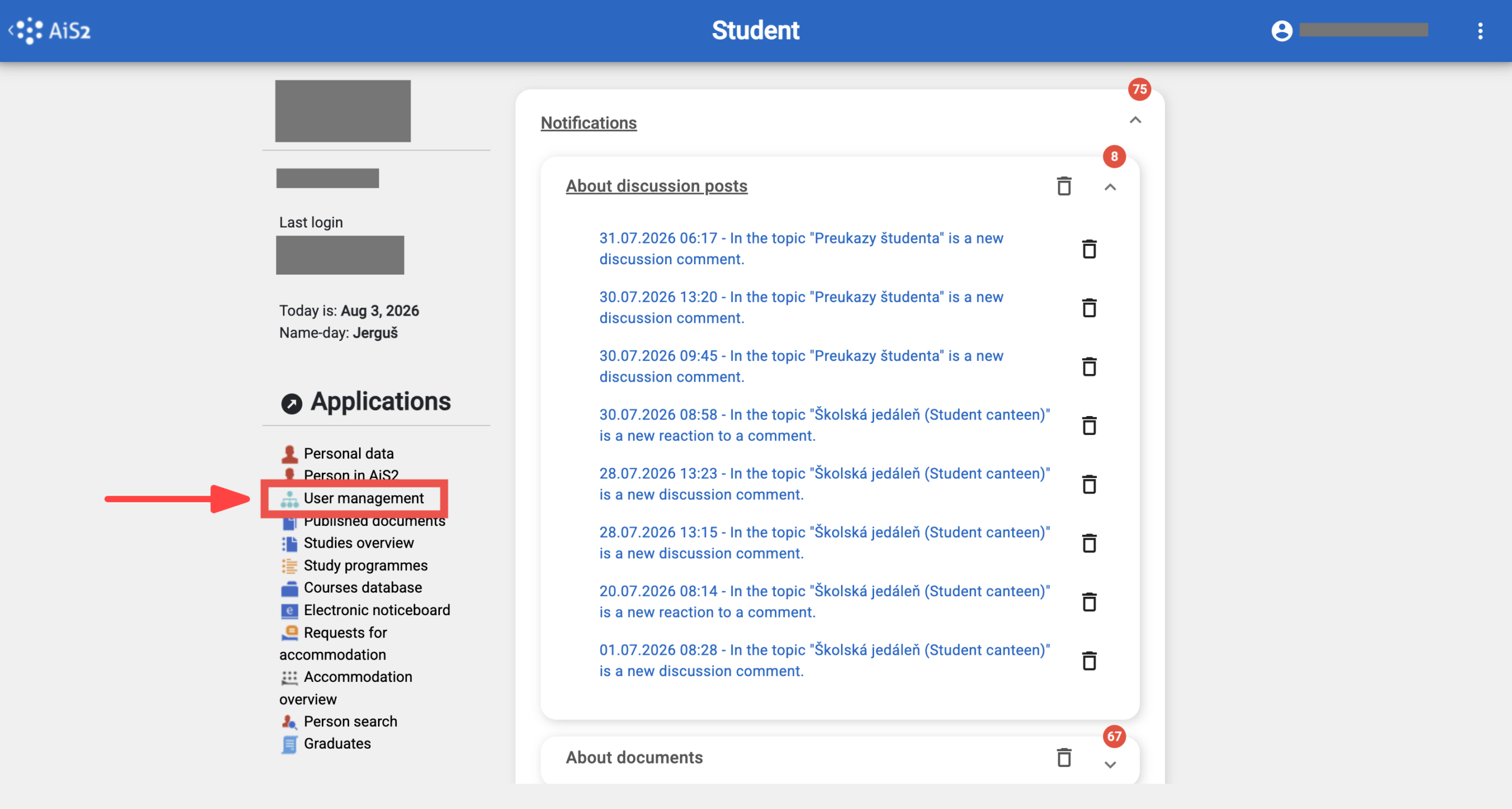
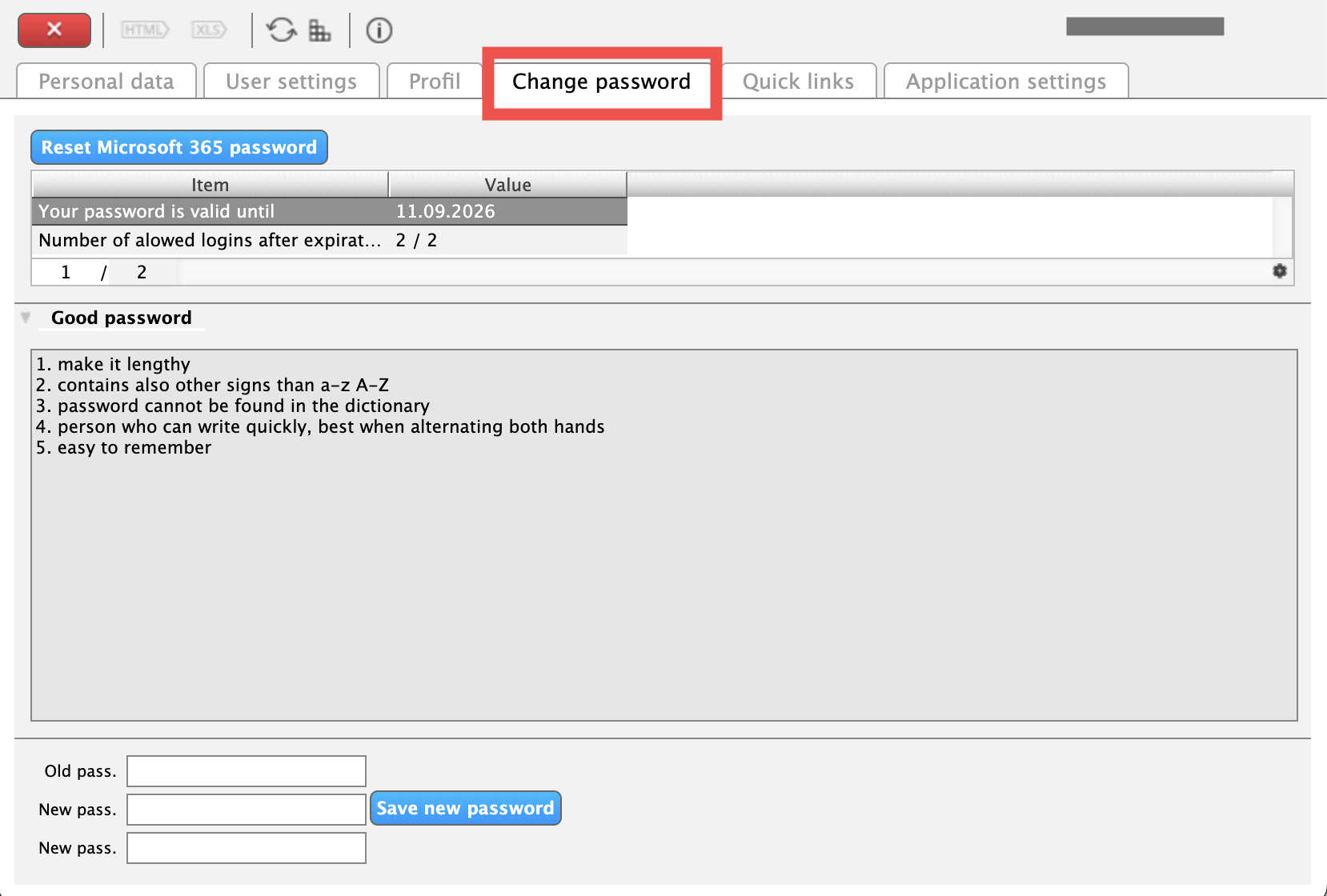
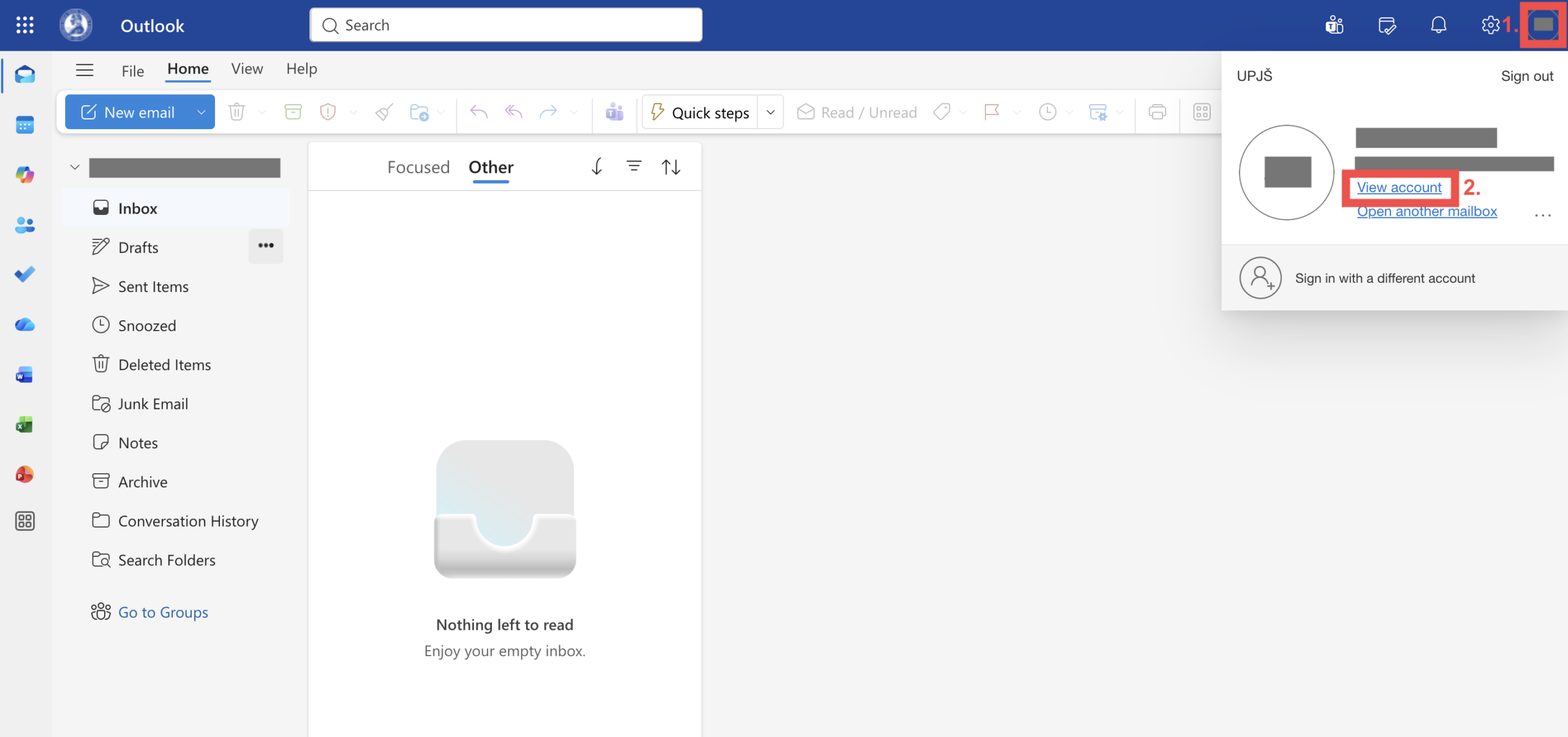
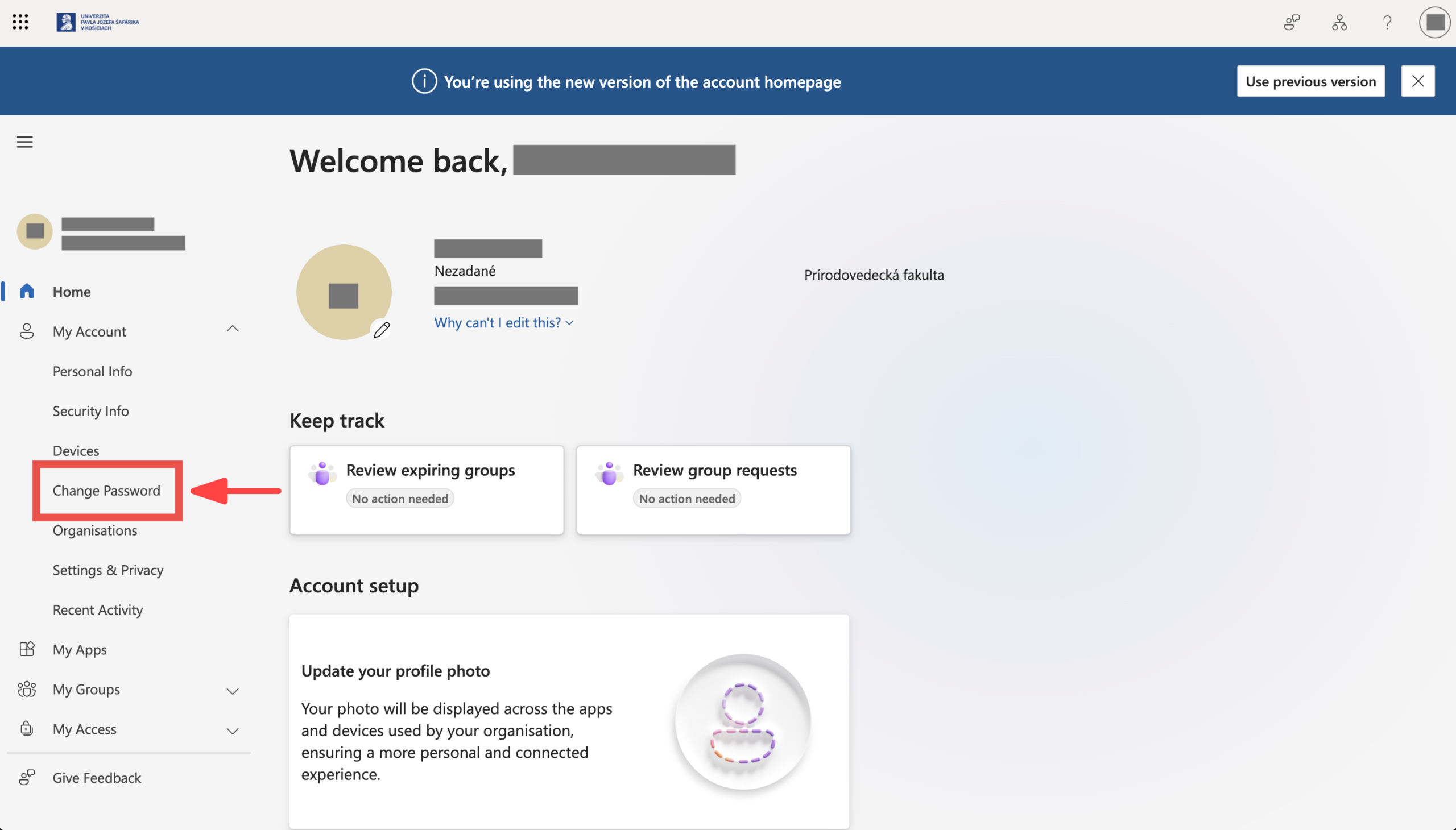
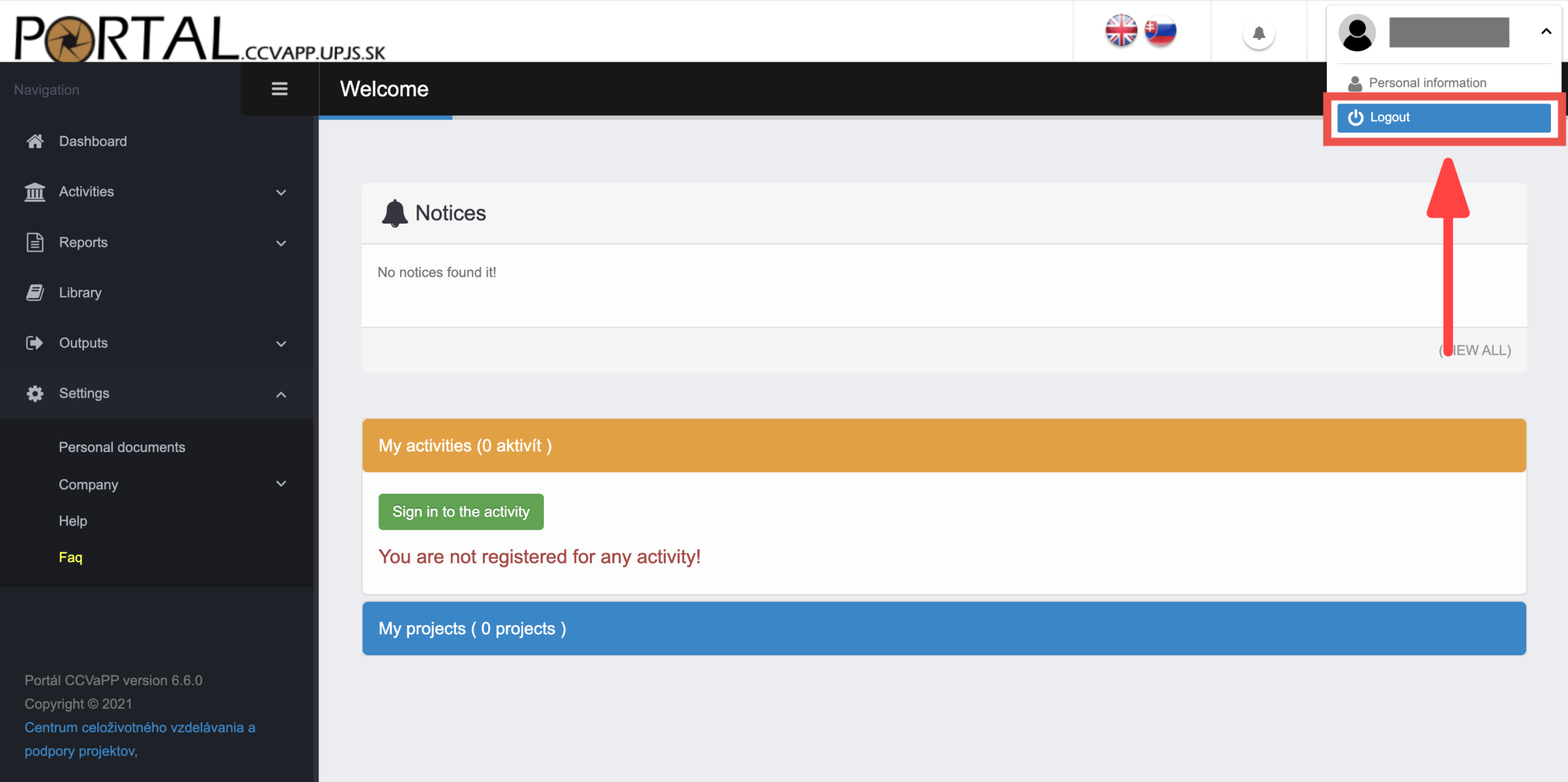
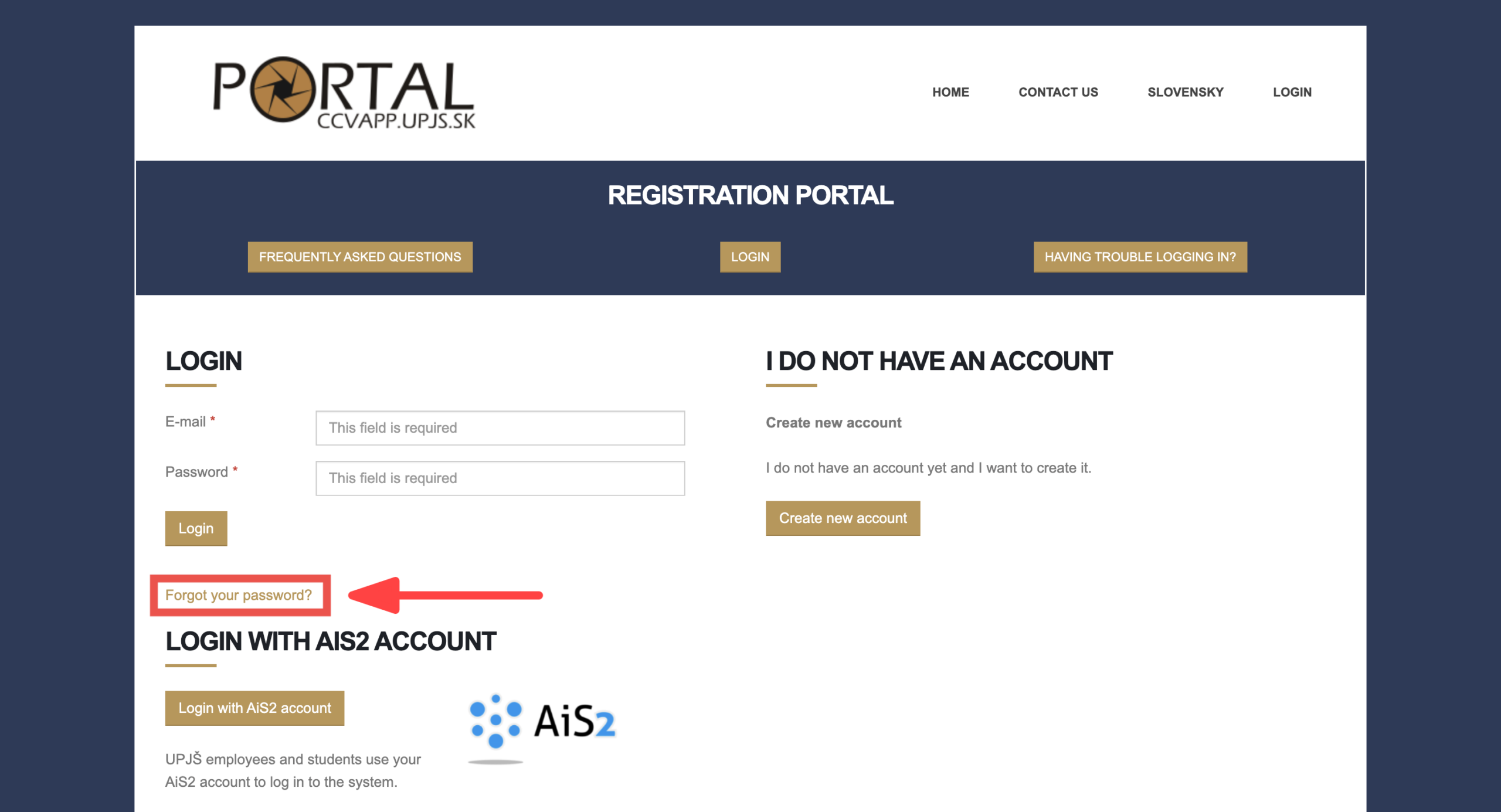
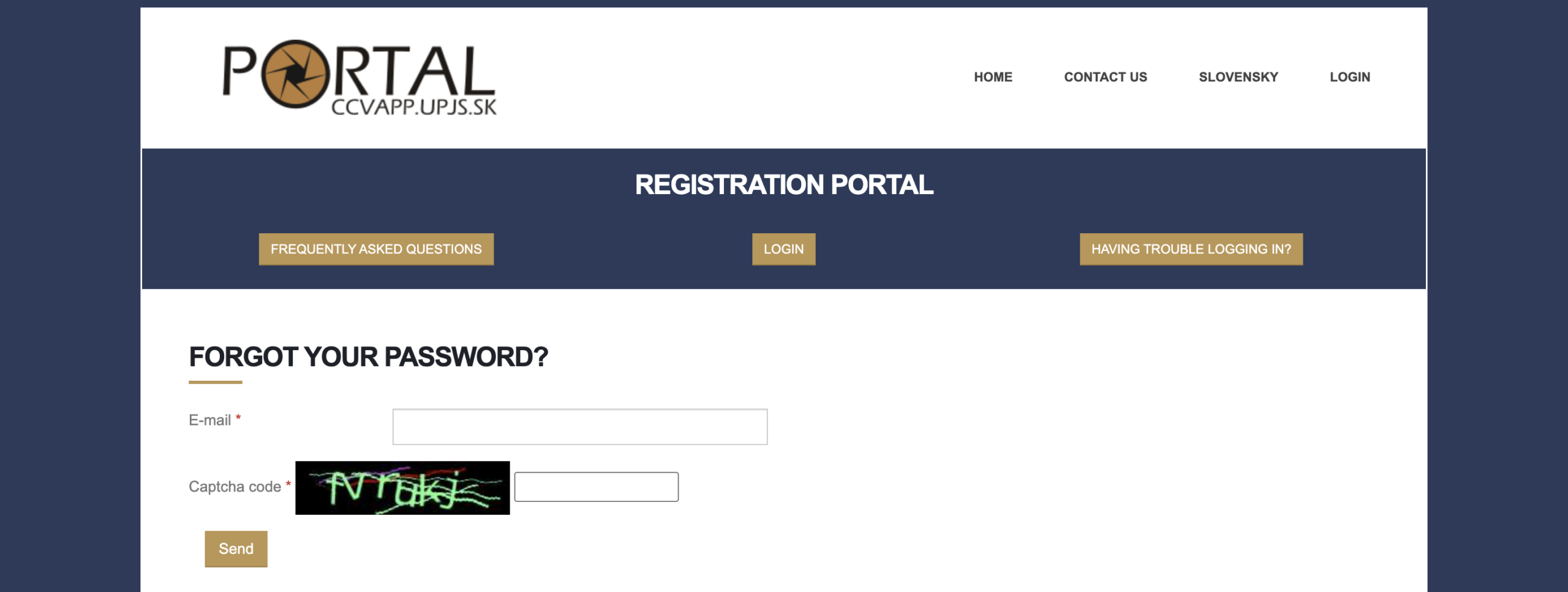
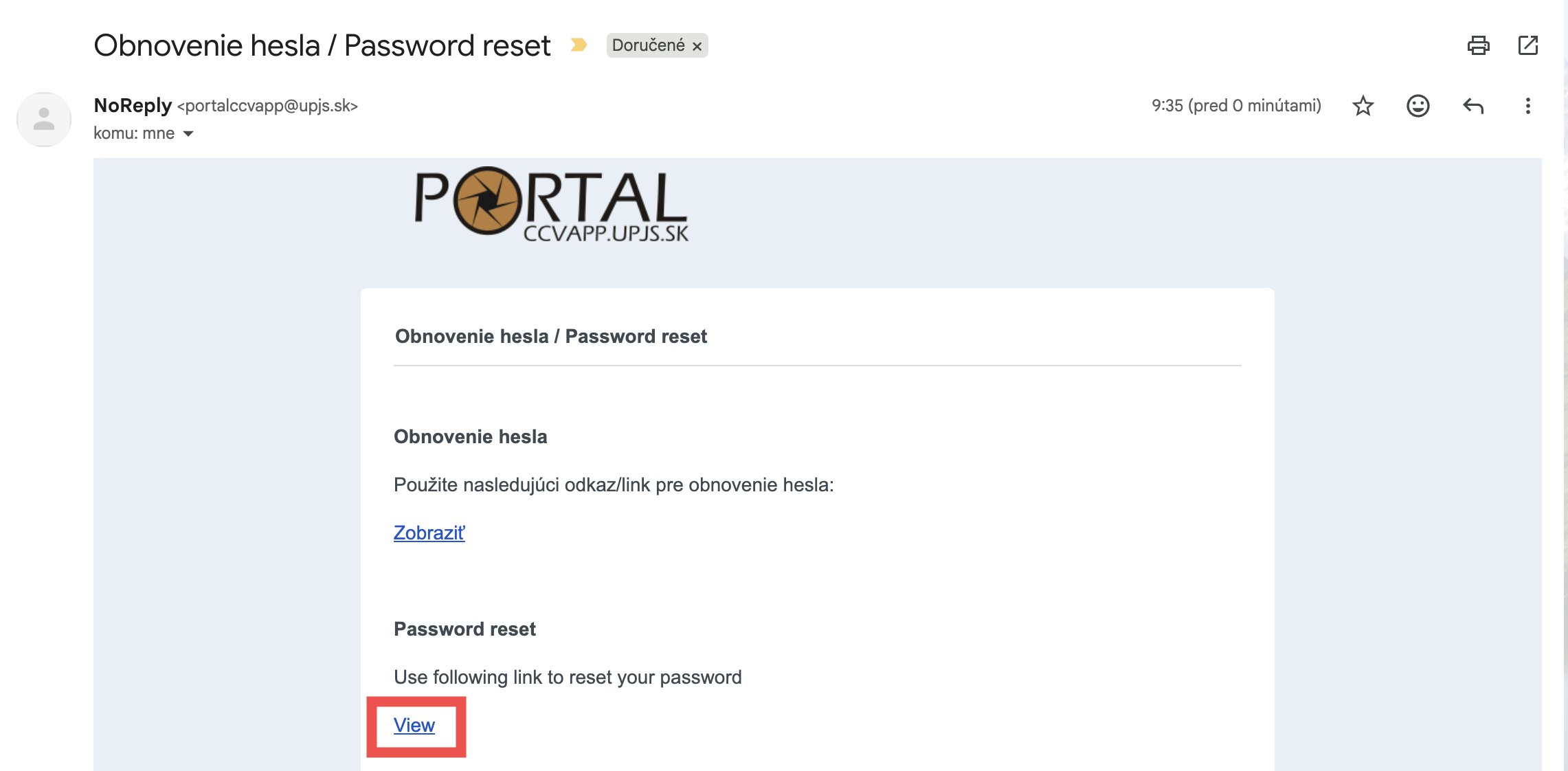
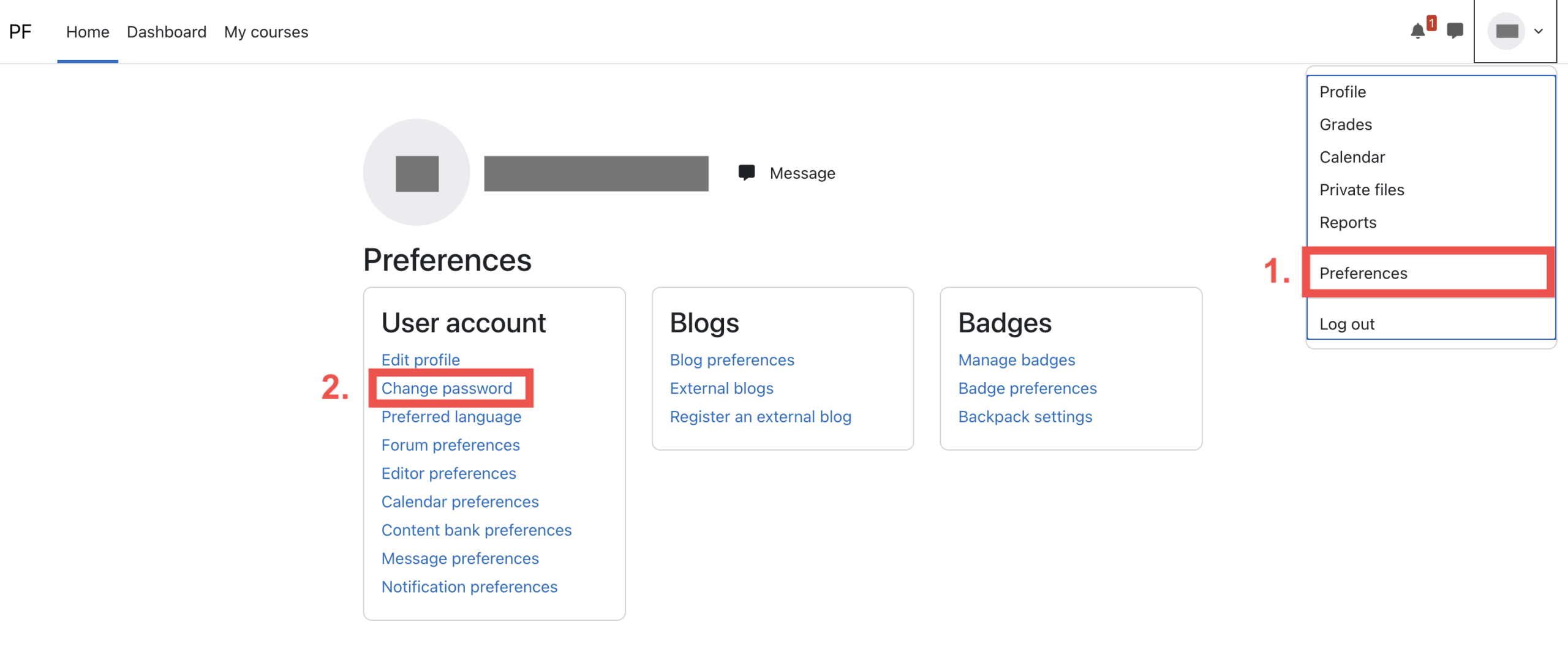
Setting passwords Setting passwords Setting a password on AIS2 1. After logging in to AIS, click on the "User Management" link (located in the left column). 2. After clicking, a new window will open, click on the "Change password" tab there. 3. Fill in the required fields and click the "Save new password" button. Setting a password in M365 (MS Office) 1. Click on your profile icon in the top right corner and select "View account". 2. In the column on the left, click the "Change Password" tab. 3. Fill in the fields and click "Save". Setting a password for the CCVaPP portal 1. If you are logged into the account, log out by clicking on your name in the upper right corner and select the "Logout" option. 1. If you are logged into the account, log out by clicking on your name in the upper right corner and select the "Logout" option. 2. On the home page, select the option "Forgot your password?" 3. Enter the email address used to log in and write the security code depicted on the image. 4. You will find an email from the portal in your email inbox. Click "View". 5. Fill in the fields with the new password, write the security code and confirm. Setting a password in Moodle/LMS 1. Click on your profile picture in the top right and select the "Preferences" link.2. In the "User account" section, select the "Change password" link. 3. Fill in the fields with your current password and new password. For more information on how to set a secure password and where to store it, see the guide. Secure password.