
Android security
Android security
We bring you a step-by-step guide to help you set up security features on your Android operating system to protect your device and privacy. With our recommendations, you'll gain control over your digital security and privacy without the hassle or need to purchase additional software.
The instructions are applicable to devices running Android 13 (and later). Some steps may not apply to older versions of the operating system. Some Android devices from different manufacturers may have slightly different settings locations.
1. Turn off Location History
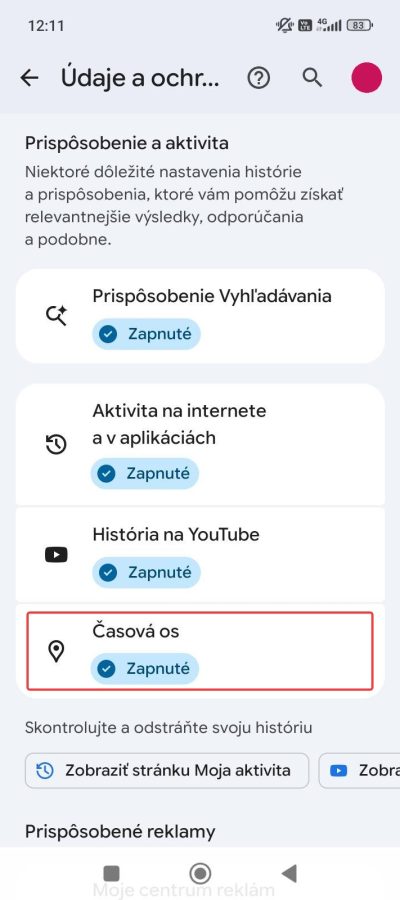
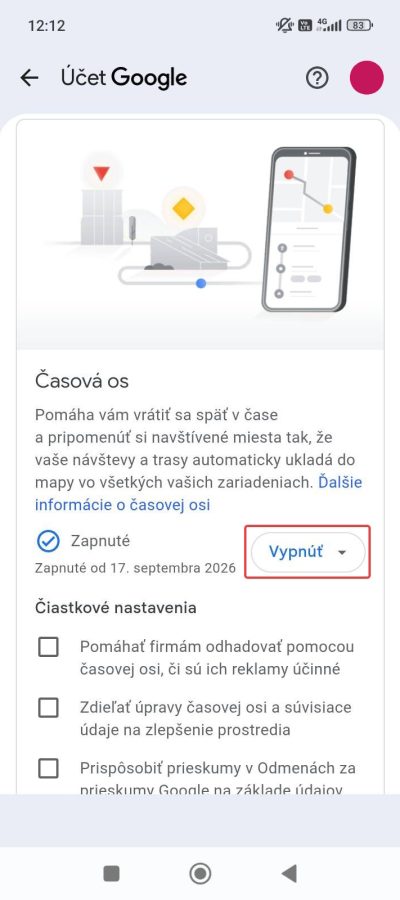
Turning off Location History on Android has several benefits, such as improving privacy, security, and limiting user tracking by Google and other apps. This measure also prevents unwanted tracking and misuse of personal data.
Settings → Google → Manage Google Account → Data & Privacy → Activity (section) → Timeline → Turn off
2. Turn off your web activity history
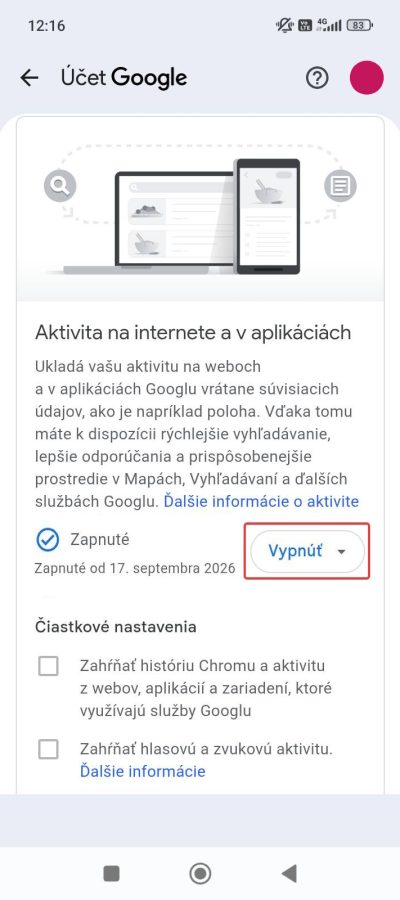
Turning off your web activity history prevents your online activity from being tracked and misused, reducing the risk of data leaks and attacks. It also improves your online security by minimizing the amount of data and information stored about you.
Settings → Google → Manage Google Account → Data & Privacy → Activity (section) → Web & App Activity → Turn off
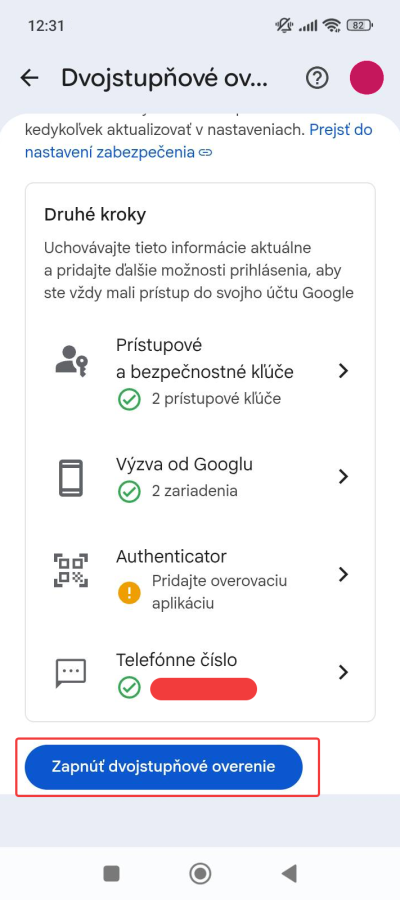
3. Two-factor authentication for Google Account
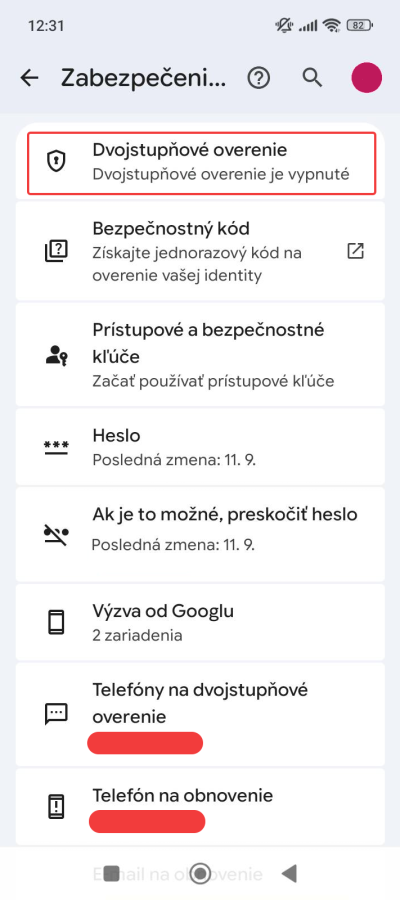
Two-factor authentication (2FA) for Android Google Account increases security by requiring two factors to verify the user's identity, such as a password and an app-generated code. This system provides protection against hacking, phishing, and other types of attacks. Overall, it provides an additional layer of protection and increases the security of your Google Account.
Settings → Google → Manage your Google Account → Security and sign-in → 2-Step Verification → Select a verification method → Turn on 2-step verification
4. Screen lock settings
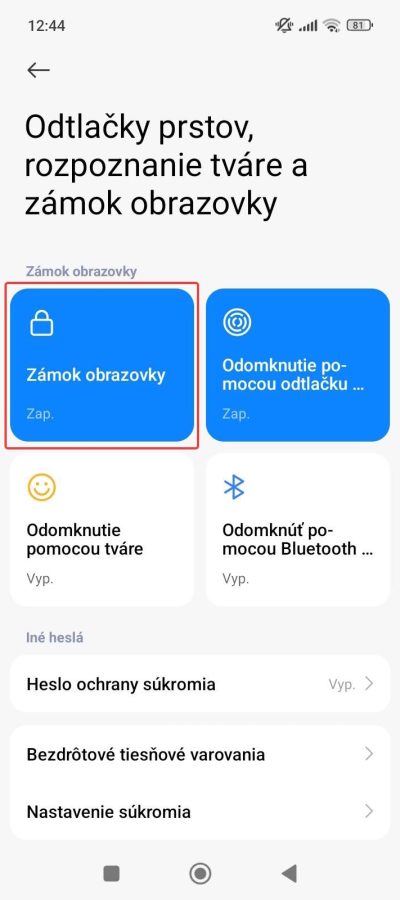
Setting a screen lock PIN on your Android device ensures that only authorized individuals can access your data and applications. Without a PIN, strangers or unauthorized persons could access your personal details and sensitive information, potentially leading to data misuse. A PIN also helps protect your data in the event that your device is lost or stolen.
Settings → Security → Fingerprints, face recognition, and screen lock → PIN
5. App Permission Control (including Accessibility Services)
App Permission Control on Android improves user security and privacy, protects personal data, prevents unauthorized access to features such as camera, microphone, SMS, and location, prevents malware attacks, and ensures that an app only has access to necessary parts of the device. Users should regularly review app permissions and limit their access to unnecessary features. Therefore, we recommend that users grant camera, microphone, SMS, and location permissions only to apps they trust.
Settings → Application → Select an app → App permissions
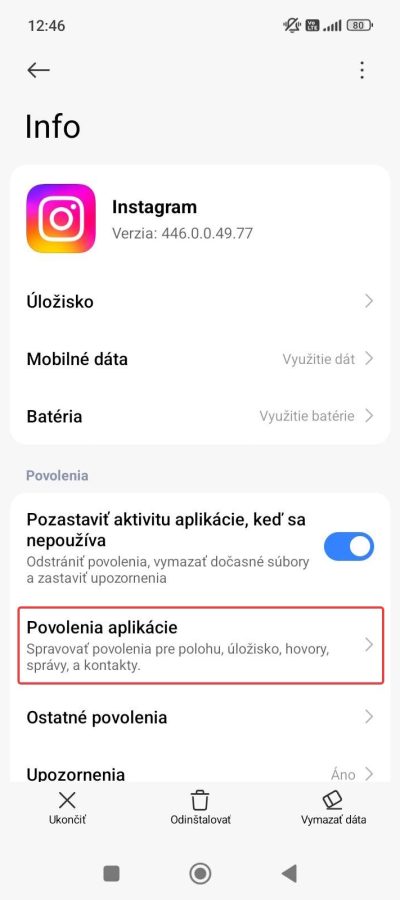
Some Android applications require special access, such as the ability to display through other apps or modify system settings.It is important to exercise caution when granting these permissions, as they can pose risks to user security and privacy.
Accessibility app permissions allow apps to access content and control your device using gestures and voice commands. These permissions are intended to help users with disabilities or temporary limitations interact with your device. However, some apps can abuse these permissions to gain control over your device and compromise your privacy and security. Therefore, it is important to review the permissions of apps you don't trust and only download apps from trusted sources.
You can check which apps have access to accessibility services in Settings → Accessibility
6. Change DNS to Cloudflare
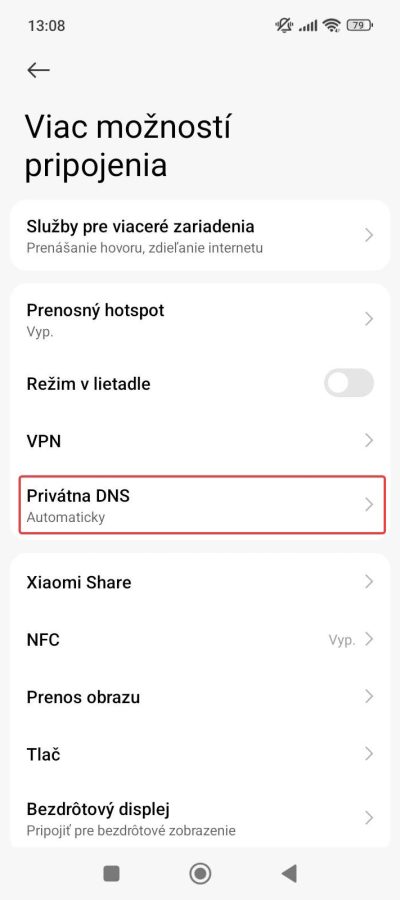
When you set up DNS to Cloudflare for Android, you can get enhanced security and privacy by blocking access to dangerous websites, protecting against phishing, and other online threats. Cloudflare DNS has a global network of servers that provide fast and reliable DNS resolution, which can help improve the performance of your internet connection. Cloudflare does not use any permanent records that store users' IP addresses.
Settings → More connection options → Private DNS → Private DNS provider hostname → Enter 1dot1dot1dot1.cloudflare-dns.com and then select Save.
7. Update your system
Updating your operating system is crucial for the security and data protection of your Android device. The latest versions of Android contain fixes for security bugs and vulnerabilities. To get information about new versions and security updates for your device, you can visit the official Android Security Bulletin page.
Settings → System → System update → Check for updates or or Download and install
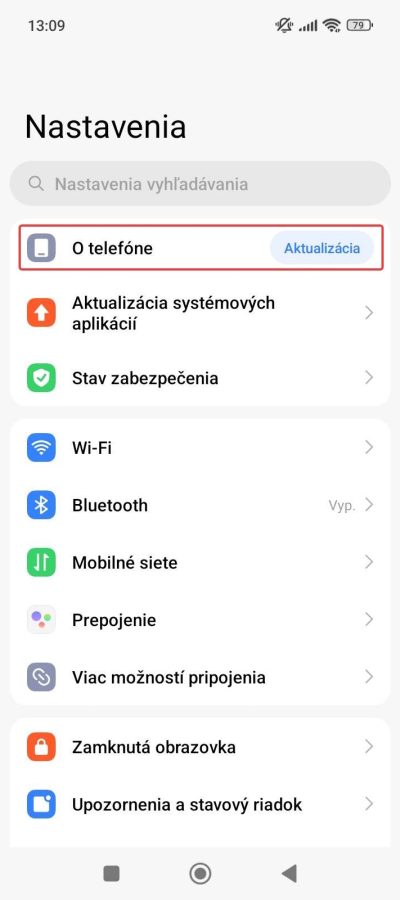
It is also important to keep your installed apps updated. You can turn on automatic app updates as follows: Play Store App → Click on your profile icon in the top right → Settings → Network settings → Automatic app updates