Google Chrome security
Zabezpečenie Google Chrome
Google Chrome is one of the most popular browsers in the world. While it has its advantages, many users are unaware that the browser's security and privacy can be improved beyond the default settings. You can increase the security and privacy of Chrome by enabling or disabling certain features. Therefore, it is important for users to consider what services and features are important to them and adjust their browser settings accordingly.
We have prepared a brief guide for you on how to improve the security of your Google Chrome browser. This guide was prepared for Google Chrome version 152.0.7977.65, , but many settings can also be found in older versions.
1. Always use a secure connection (HTTPS)
HTTPS is a more secure version of HTTP that provides secure data transmission between a web browser and a remote server. The encryption of data transmission in this protocol protects sensitive information such as login credentials, credit cards, and other important data from unauthorized access and modification. This allows Internet users to use Wi-Fi, public networks, and other Internet connections with greater confidence that their privacy and sensitive information are protected.
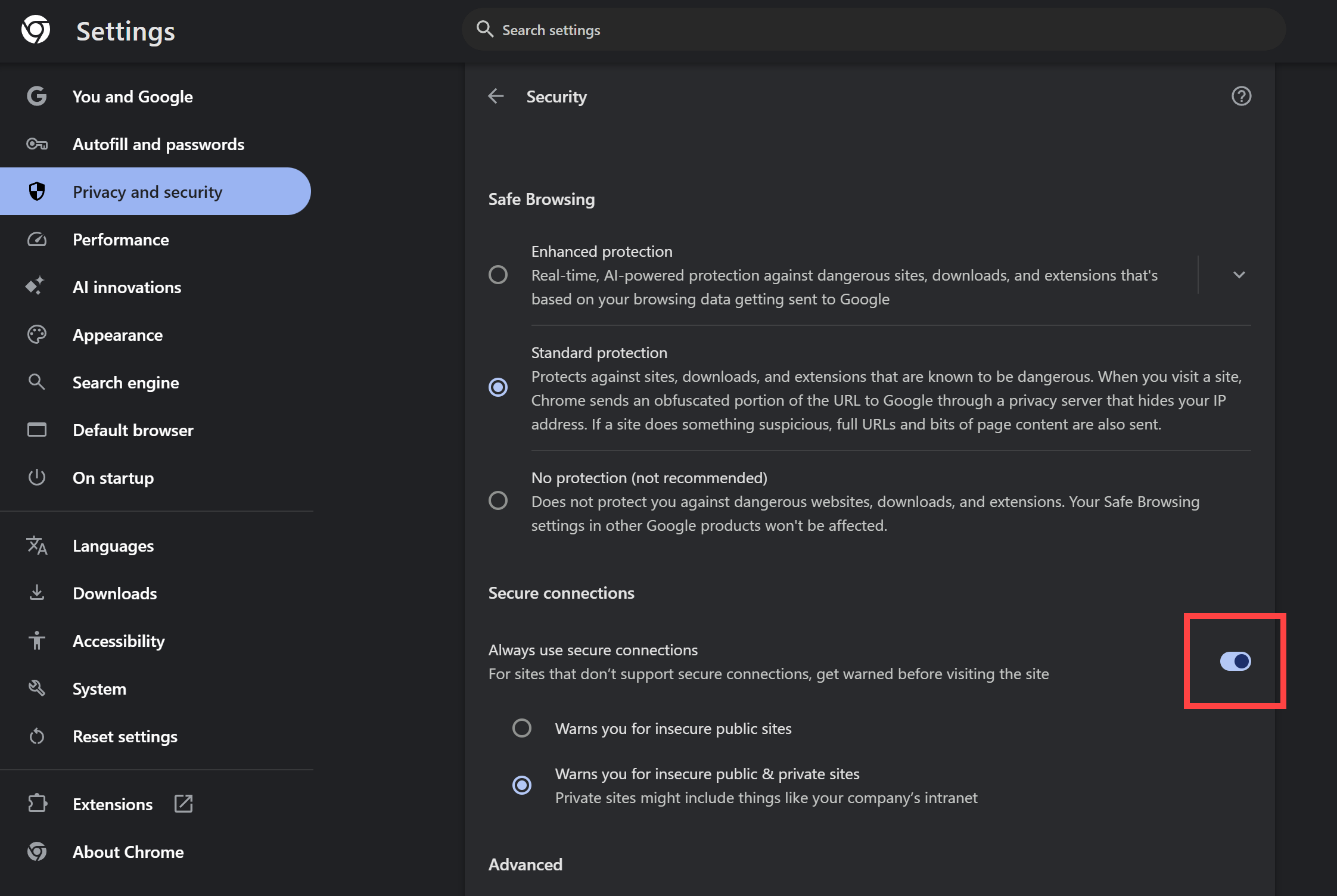
When this feature is enabled, Chrome attempts to connect to every site via HTTPS. If a site does not support HTTPS, Chrome displays a warning before opening it. As of version 154, this feature is enabled by default in Chrome for public websites. We recommend verifying that it is enabled and configuring it to show a warning for all sites, not just public ones.
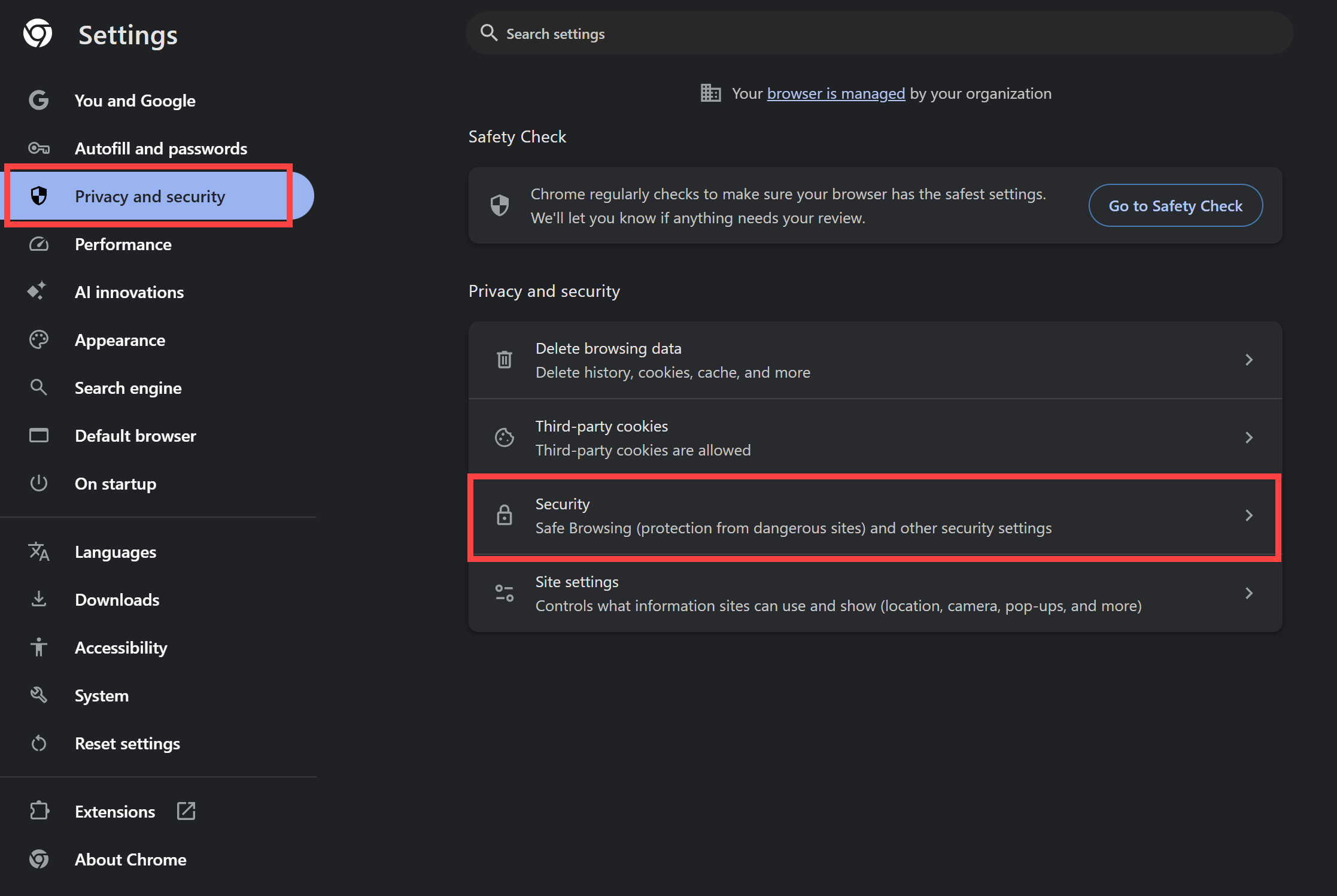
Settings → Privacy and Security → Security → turn on “Always use secure connections”.
2. Change the default search engine to Startpage.com
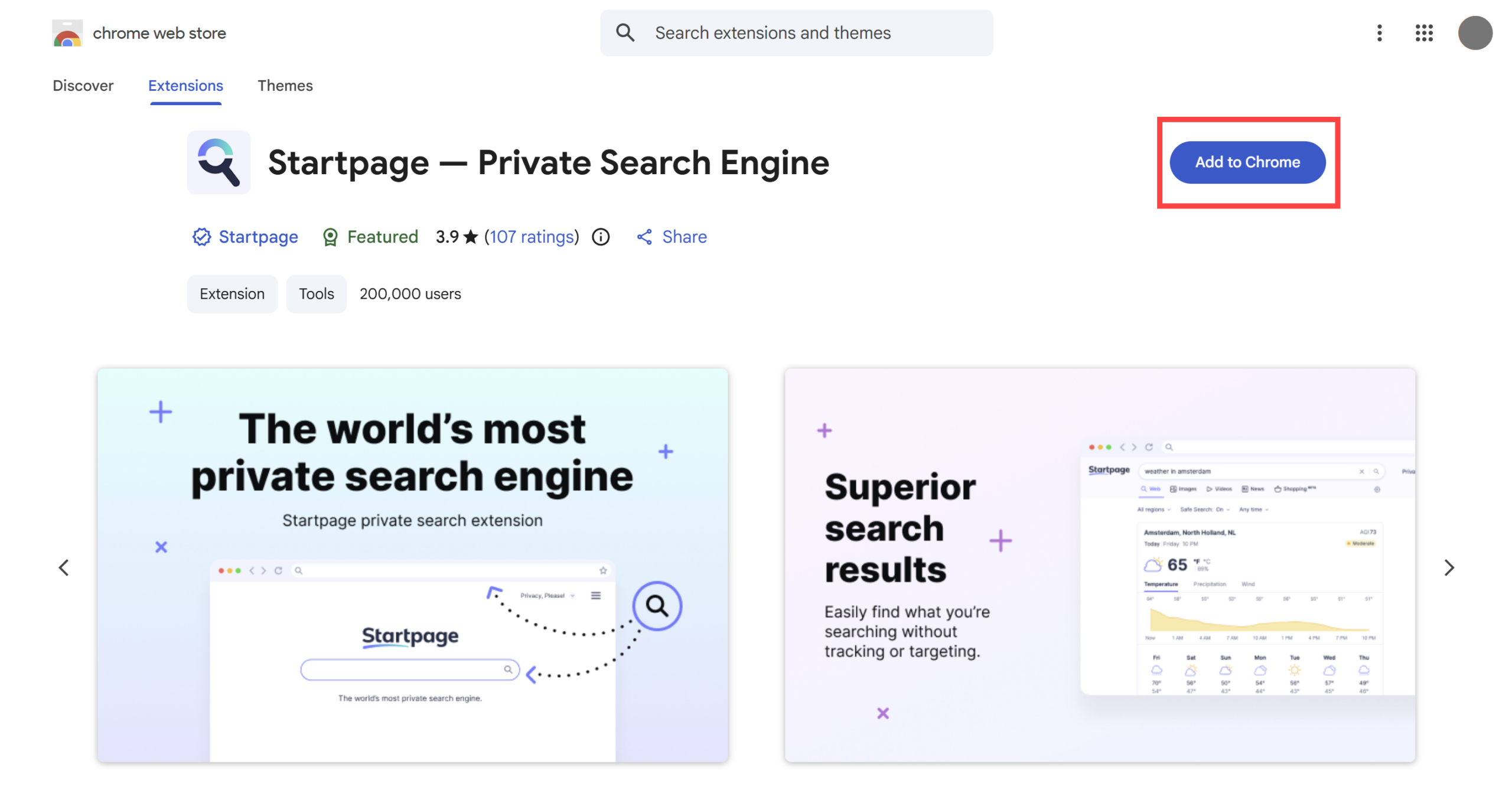
The Startpage.com search engine is focused on protecting the privacy of its users. Compared to competing search engines, Startpage.com does not use any tracking tools, does not store queries, and does not record users' IP addresses. In addition, Startpage.com provides relevant search results that are taken from the Google search engine, ensuring quality without compromising user privacy.
You can install the Startpage extension at the following link: Startpage – Private Search Engine → Click on Add to Chrome → Add extension.
3. Installing an ad-blocking plugin
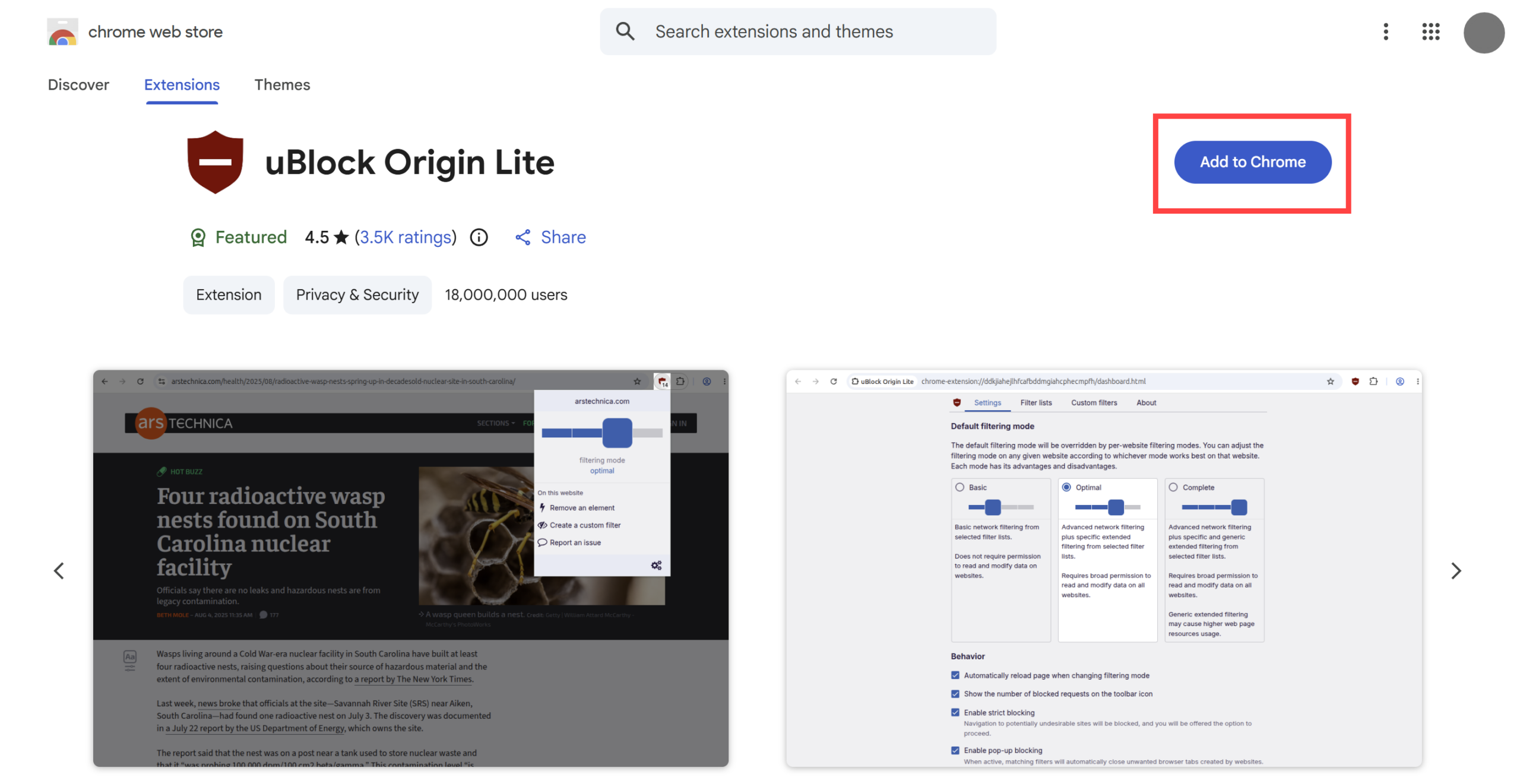
The add-on called “uBlock Origin Lite” has the ability to block ads and unwanted elements on websites, thus improving your internet browsing experience. In addition, this add-on provides advanced tracking protection that blocks additional tracking elements that can be used to track your activity on the web. In this way, it protects you and your data from potentially harmful ads that could ensure that your browser becomes the target of an unwanted advertising campaign or, even worse, the target of an attack on your device.
You can install the Ublock Origin Lite add-on at the following link: uBlock Origin Lite → Click on Add to Chrome → Add extension.
4. Turn off location history
Turning off location history on a device can have many privacy benefits. This can help prevent unauthorized tracking of a person's movements and the misuse of the data for surveillance purposes. Keeping location history can also compromise privacy and allow information to be shared with third parties. Location history can contain sensitive information about a person's whereabouts, and this information can be dangerous if it falls into the wrong hands.
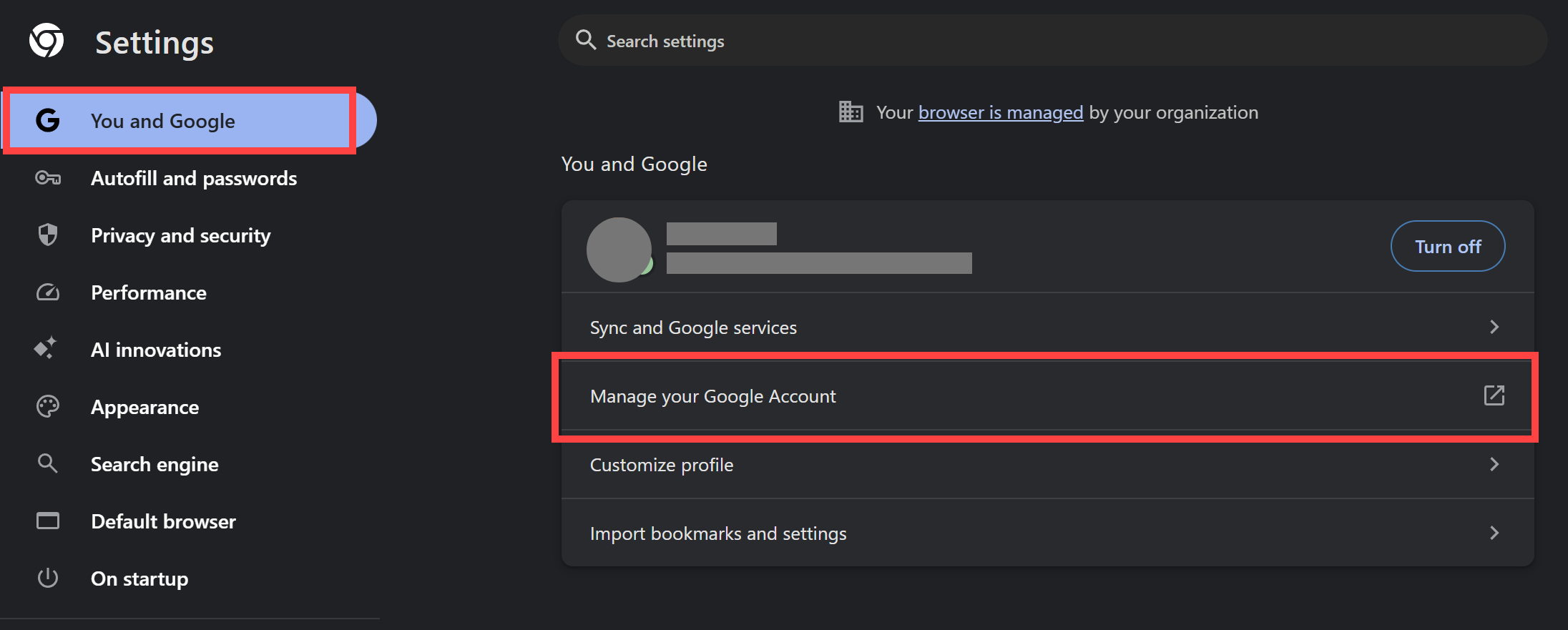
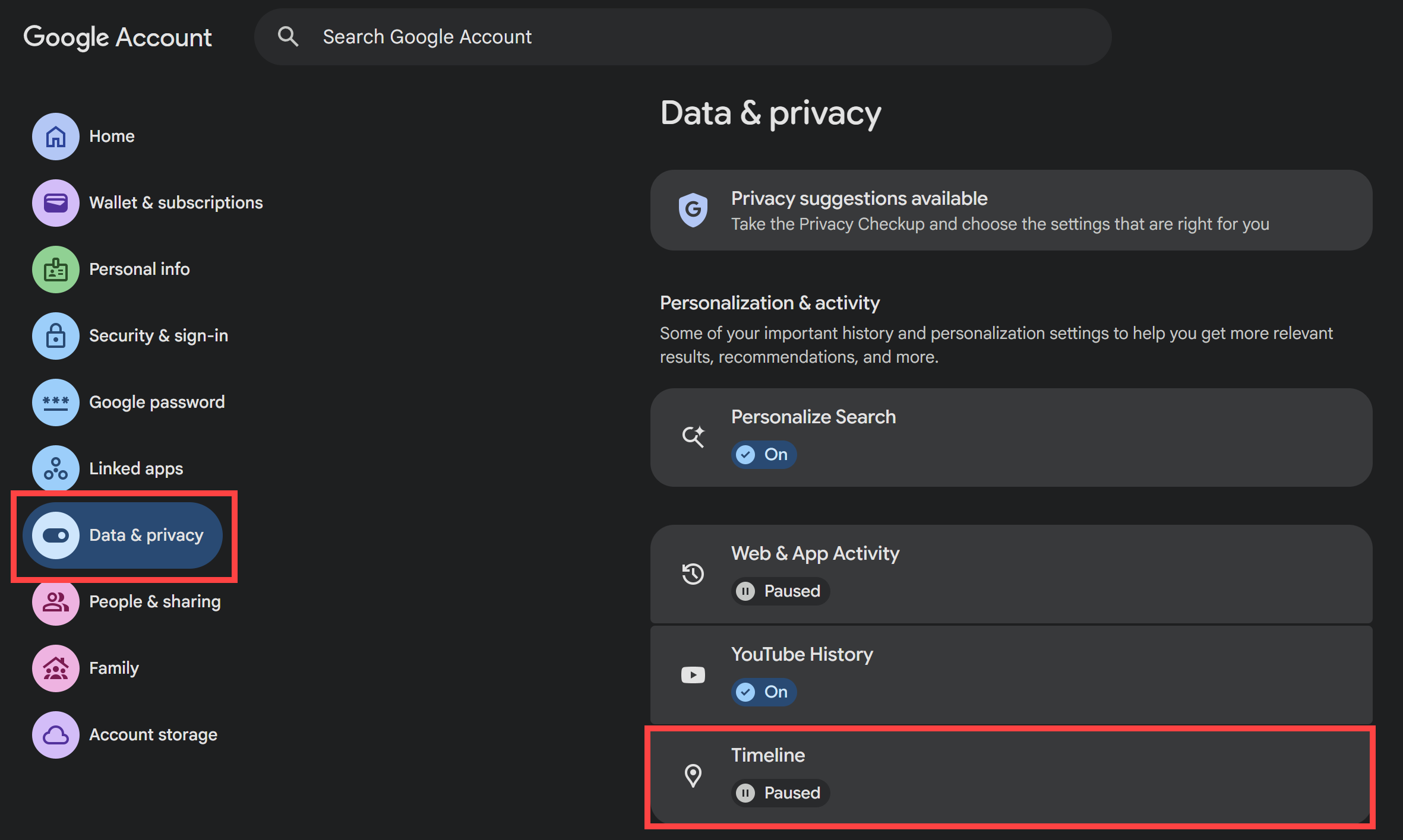
Settings → You and Google → Manage your Google Account → Data & privacy → In the section Personalization & activity make sure that this item is paused: "Timeline".
5. Turning off Internet activity history
Turning off Activity History limits the data stored in your account regarding your activity on the internet and within Google apps. This provides better protection for your privacy, ensuring that if someone were to gain access to your account, they would find less information about you.
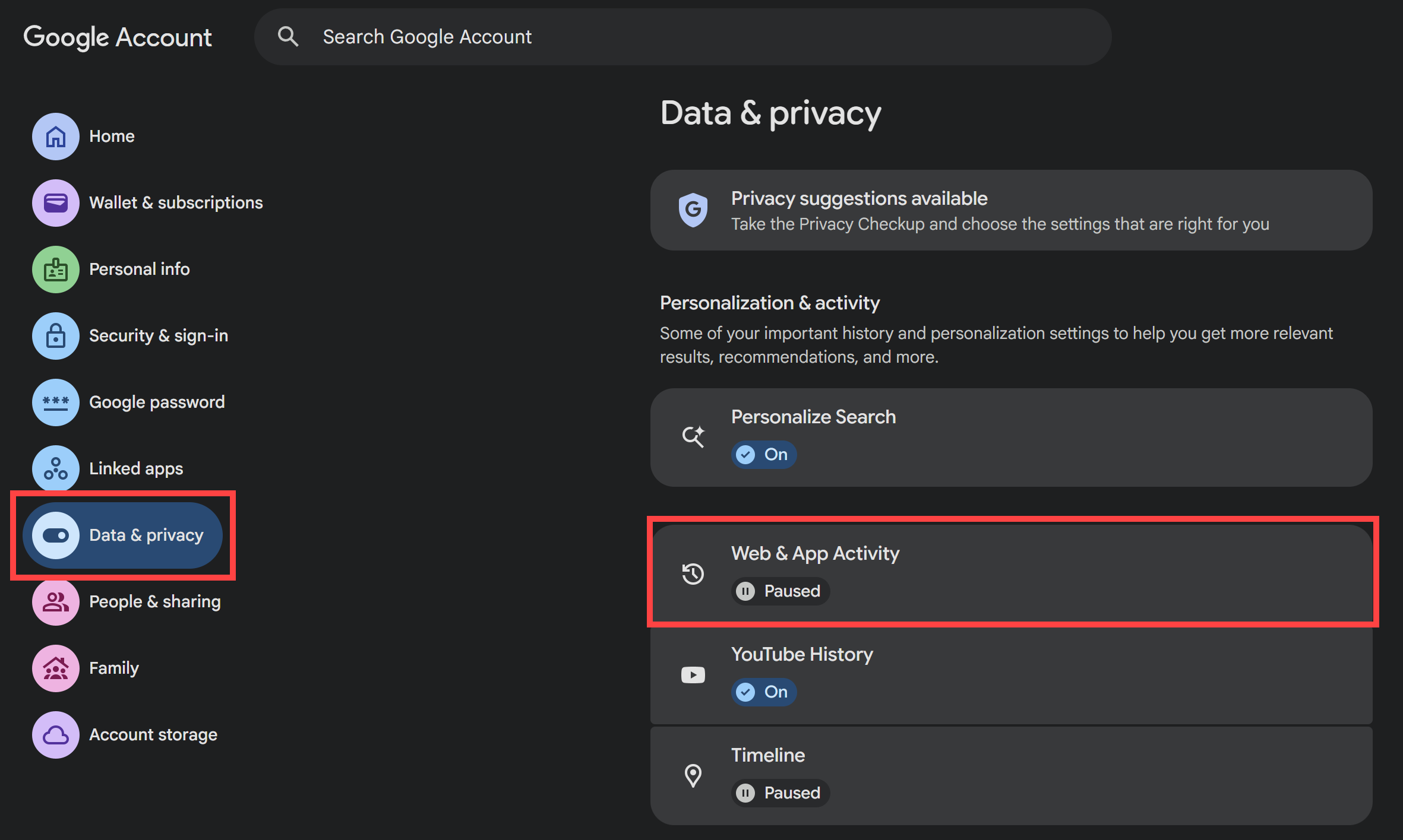
Settings → You and Google → Manage your Google Account → Data & privacy → In the section Personalization & activity make sure that this item is paused: "Web & App Activity".
6. Setting up Google services
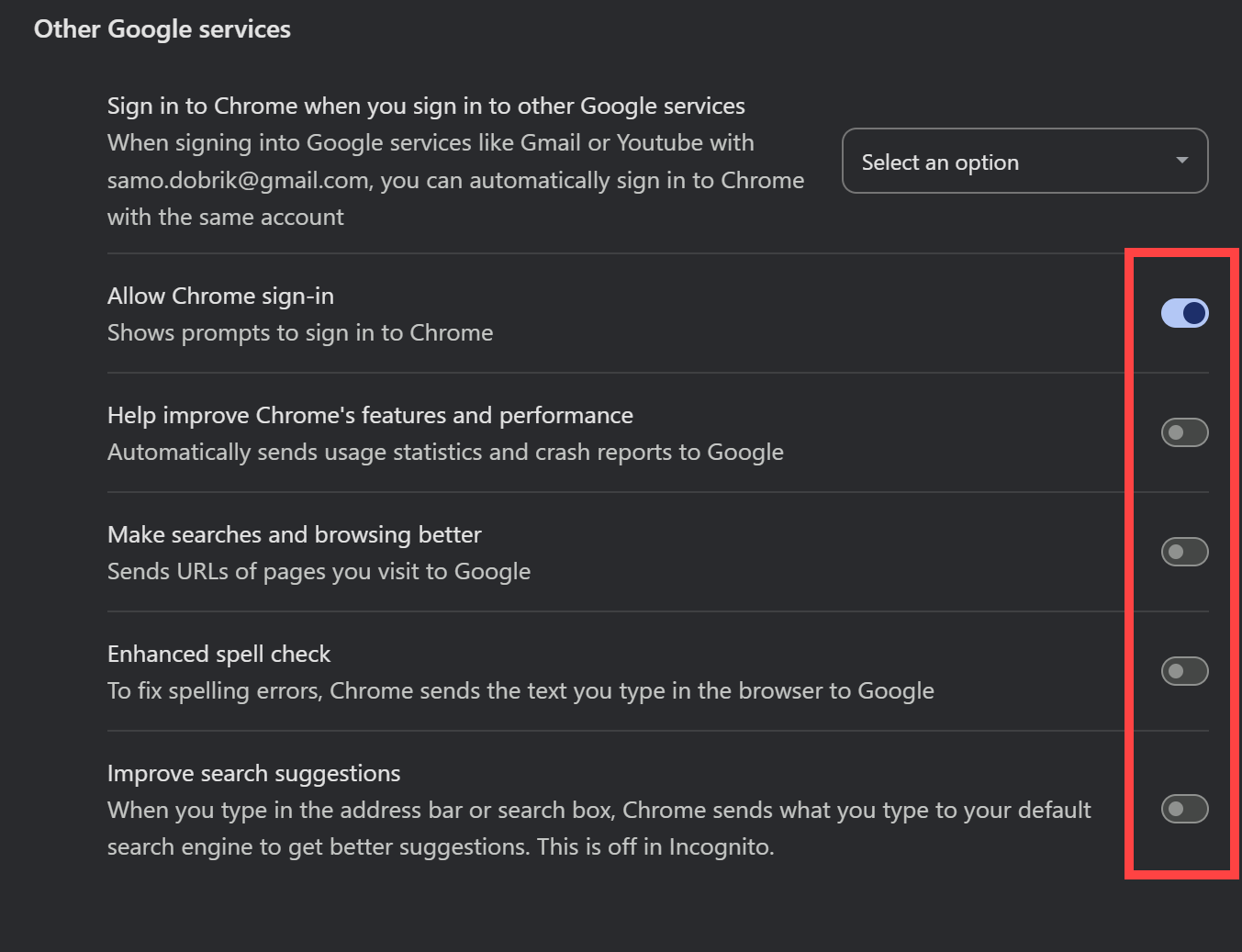
Another setting that affects your data and privacy is Data Sync and Google services in Chrome. Turning off these settings can be beneficial in several ways. For example, when sync is turned on, Google may collect your data and information about activities such as websites you visit and searches, and this data may be shared with other services and apps, which may affect your privacy and security. Turning off these services can minimize the risk of your data being tracked, shared, and misused, and improve your privacy and security.
Simply put, disabling Google services in Chrome can improve the privacy and security of your data, minimizing the risk of tracking and misuse of your data.
Settings → You and Google → Sync and Google services → Make sure you have the services set up as shown in the picture.
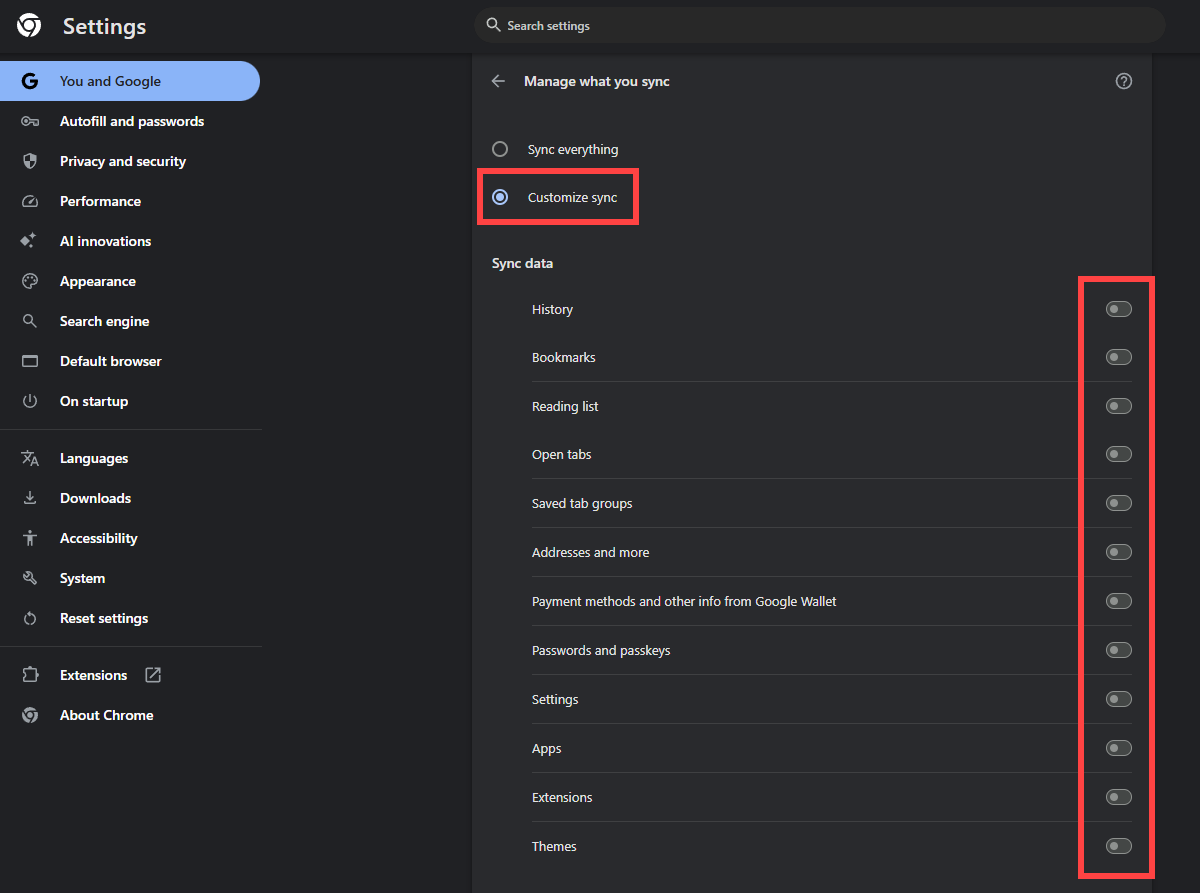
We then recommend turning off the following sync settings. You can change these settings in Settings → You and Google → Sync and Google services → Manage what you sync → Customize sync → Make sure you have sync set up as shown in the image.
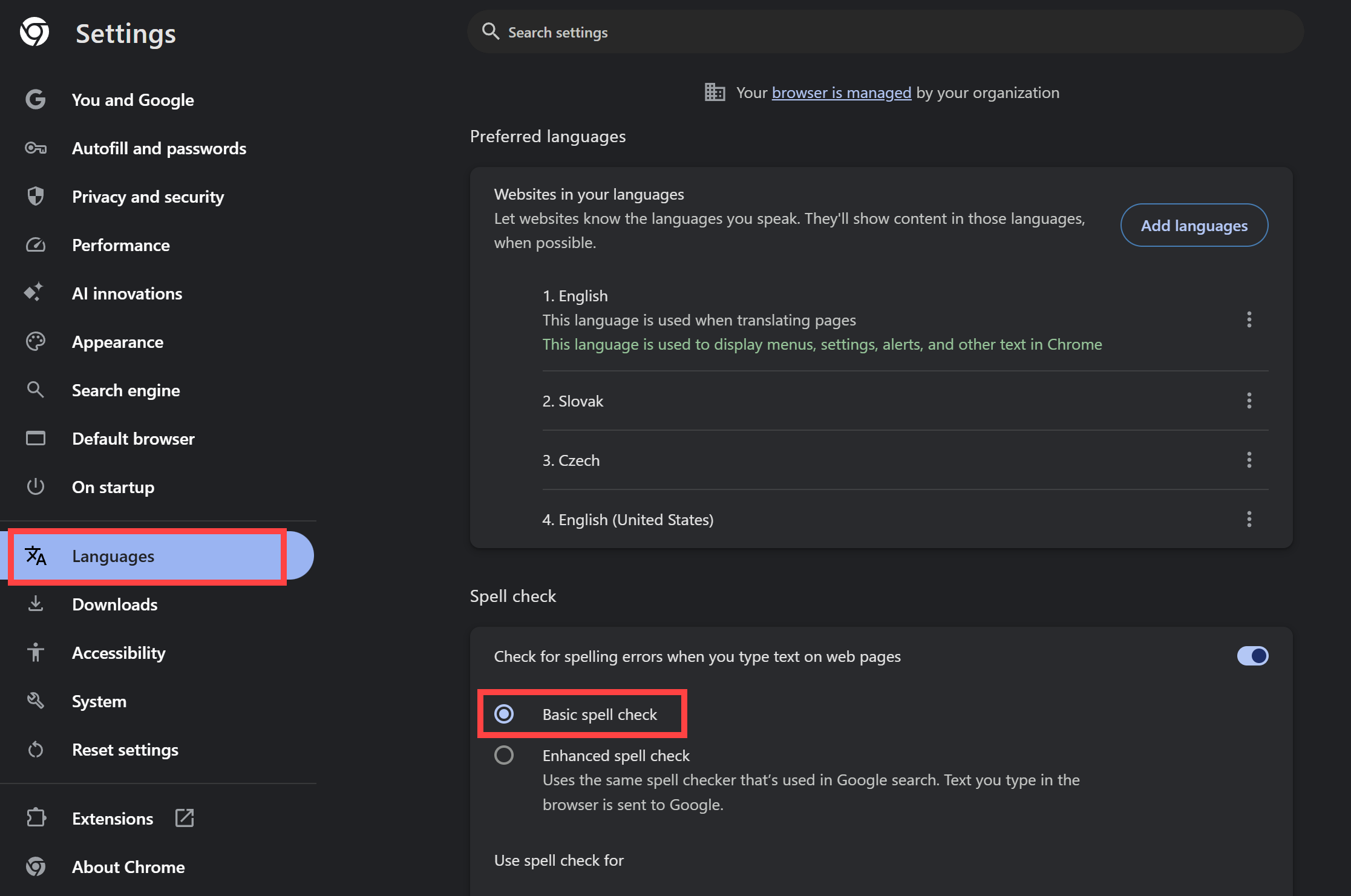
We also recommend checking your Enhanced spell checkYou can turn off Enhanced spell check in Settings → Languages → Make sure you set Basic spell check.
7. Turning off background apps
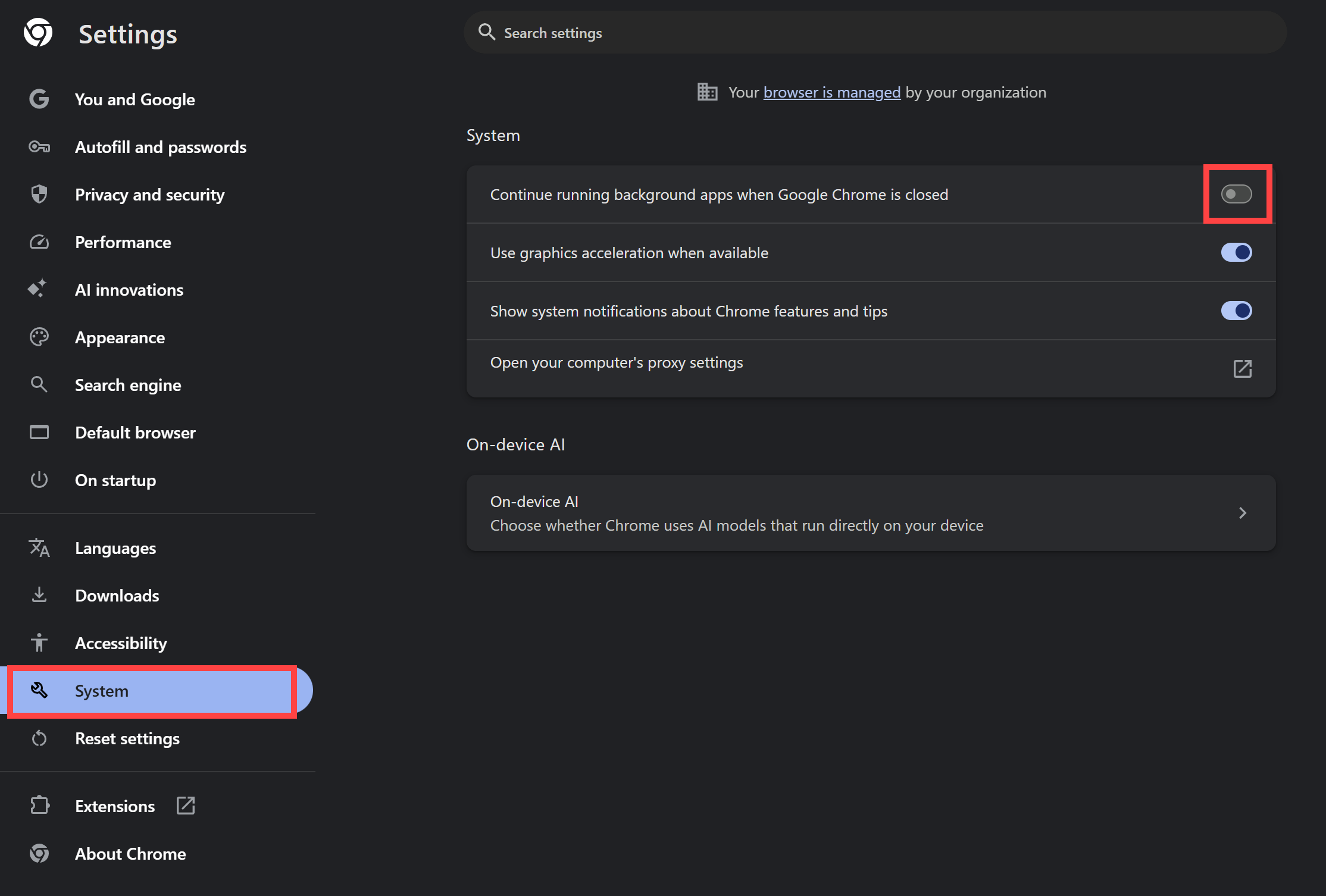
If this feature is enabled, Chrome will not shut down completely when a window is closed, allowing extensions and web apps to continue running. Disabling it ensures that all components of the browser stop when it is closed. This prevents them from processing data or consuming your device's battery and memory without your knowledge.
Settings → System → Make sure that "Continue running background apps when Google Chrome is closed" is set to Off.