Firefox browser security
Firefox browser security
Mozilla Firefox is one of the most popular browsers, both for its speed and its focus on privacy and security. But did you know that Firefox's security and privacy can be increased significantly beyond its default settings?
We've prepared a few steps for you that will make using Firefox safer and more private. The instructions were created for Firefox version 130, but they should also work in the future, on newer versions of the browser.
We've divided each tip into two levels, depending on how many potential compatibility issues the setting may cause. If your goal is to browse the Internet carefree without any technical problems, we recommend that you aim for level 1. However, if you don't mind the occasional compatibility issue, level 2 will help you achieve a much higher level of security and privacy.
Installing the ad blocker add-on (level 1)
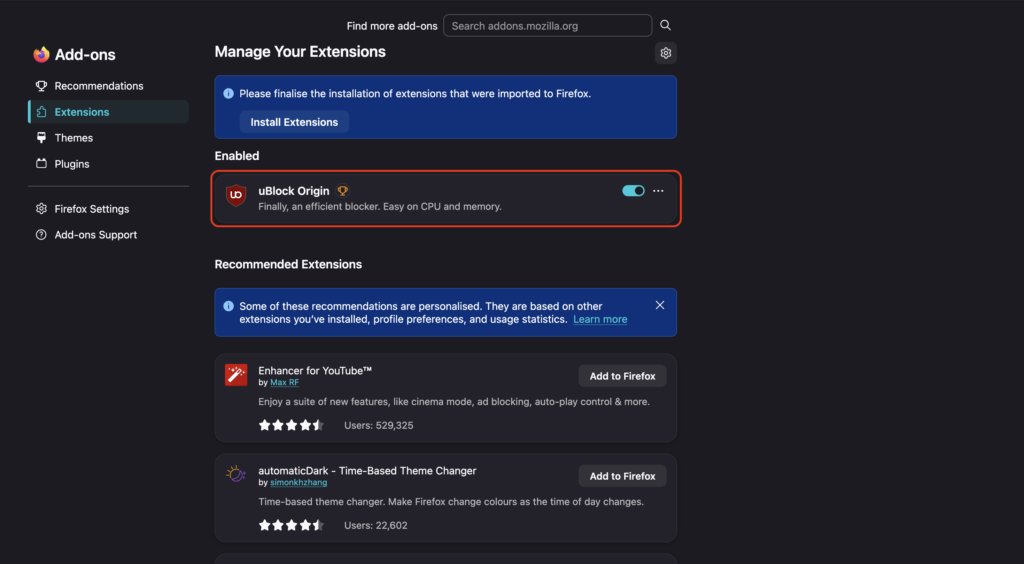
The uBlock Origin add-on blocks ads and unwanted elements on websites. It also complements Advanced Tracking Protection by blocking additional tracking elements. It protects you from potentially harmful ads. It is a non-commercial, community project with a good reputation, whose security and functionality is verified and controlled directly by Mozilla.
You can install the uBlock Origin add-on at the following link: https://addons.mozilla.org/sk/firefox/addon/ublock-origin/.
After installing the add-on, we also recommend enabling it in private windows as follows: Firefox browser menu in the upper right corner → Settings → Extensions and themes in the lower left corner → click on the uBlock Origin inscription → Enable in private windows → switch to "Enable".
Enabling DNS over HTTPS (Level 1)
With standard DNS, requests for website name resolution may be transmitted in clear text. Firefox supports the technology DNS over HTTPS (DoH), which encrypts these requests, thereby making it more difficult for Internet service providers or attackers on the local network to monitor them.
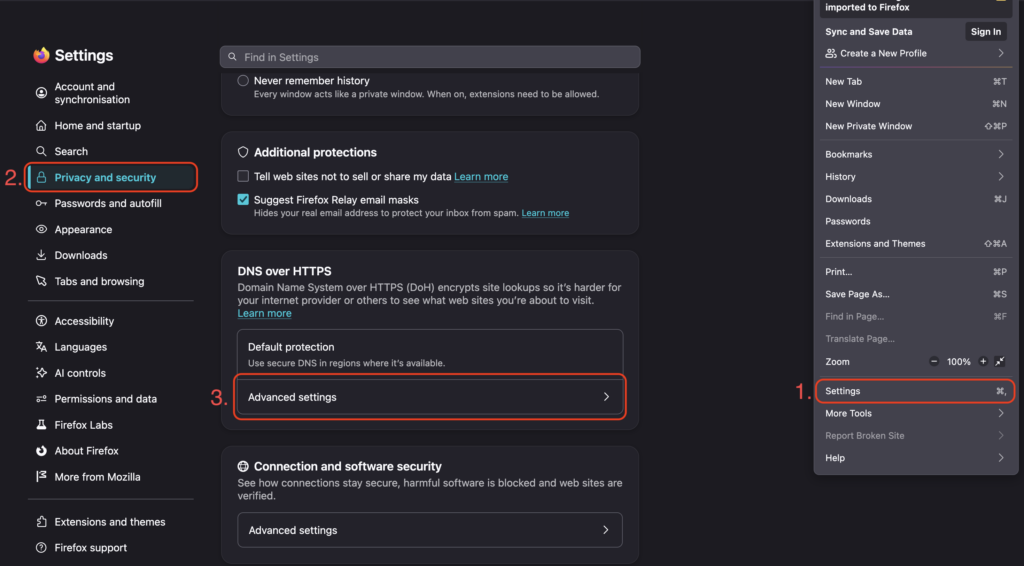
You can configure DNS over HTTPS as follows: Firefox menu → Settings → Privacy and Security → DNS over HTTPS → Enhanced Protection.
Enabling Global Privacy Control (Level 1)
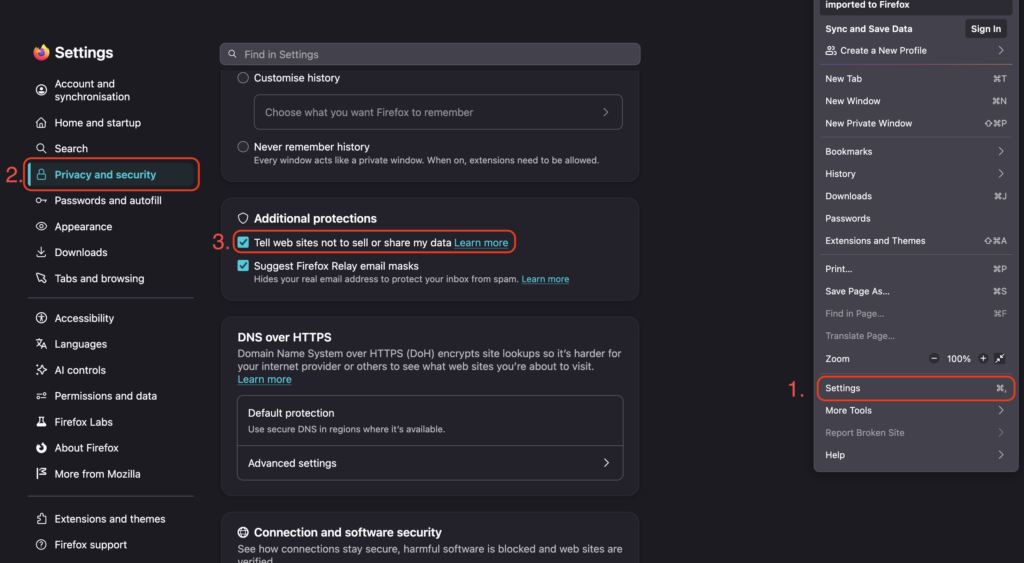
Firefox supports a feature Global Privacy Control (GPC), which you can use to notify websites that you do not want your personal data to be sold or shared. This is not a technical method of blocking tracking, but rather a way to automatically send your preference to the websites you visit.
You can enable GPC as follows: Firefox menu → Settings → Privacy and Security → Additional Protections → Tell web sites not to sell or share my data.
Limiting Firefox's Data Collection (Level 1)
Firefox may send certain technical and usage data to Mozilla, which is used, for example, to develop and improve the browser. If you want to minimize the amount of data sent, you can disable some data collection options.
You can find these settings as follows: Firefox menu → Settings → Privacy & Security → Firefox Data Collection and Use. In this section, you can disable individual options for sending data to Mozilla according to your preferences.
Change your default search engine to Startpage.com (Level 2)
Startpage.com is an internet search engine originating from the Netherlands, which prides itself on its strict privacy policies for its users. Unlike search engines such as Google or Bing, Startpage.com does not store your queries, does not record your IP address and does not use any tracking cookies.
A big advantage of the Startpage.com search engine compared to, for example, DuckDuckGo is the fact that its search results are taken from the Google search engine. This way, you get relevant and accurate results, but not at the expense of your privacy.
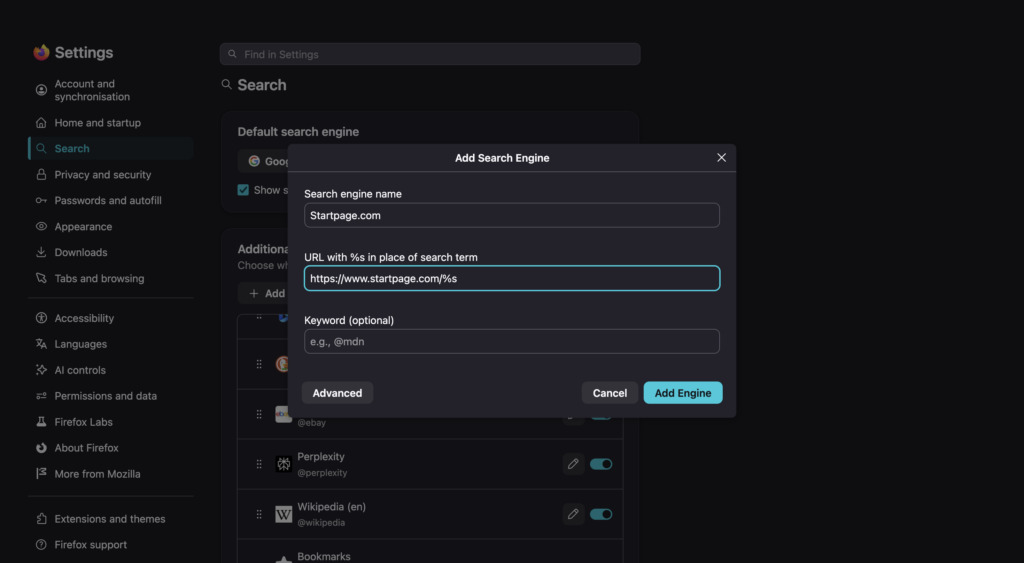
You can install the Startpage search engine at the following link: https://addons.mozilla.org/en-US/firefox/addon/startpage-private-search/.
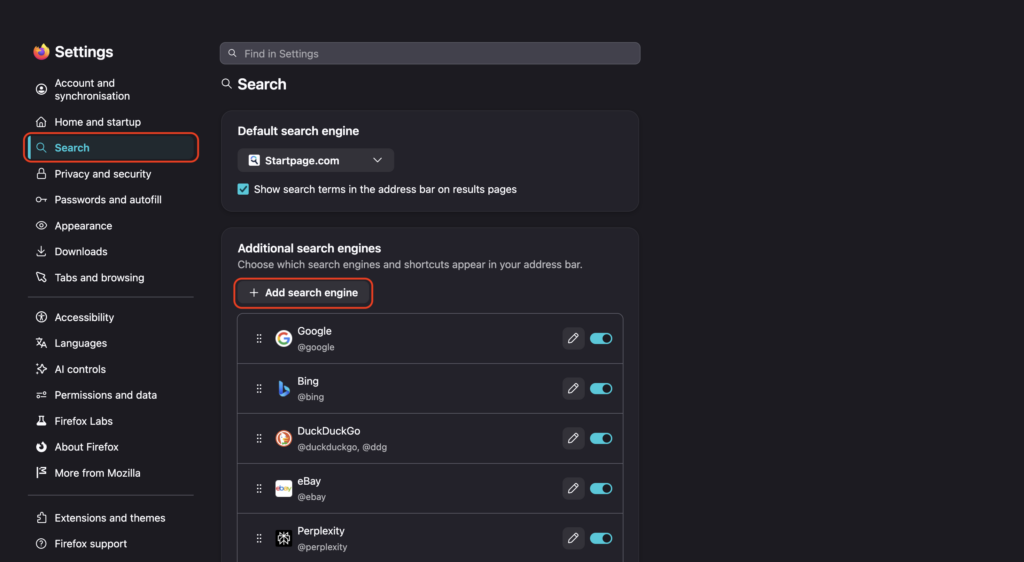
You can activate it as the default search engine as follows: Firefox browser menu in the upper right corner → Settings → Search → Default search engine → switch to "Startpage.com".
Blocking attempts to fingerprint your browser (Level 2)
Another way to track your activities is by creating a unique browser fingerprint. Websites can generate this based on characteristics such as screen resolution, time zone, supported languages, and available fonts. Such a fingerprint can enable your identification even without the use of cookies.
Firefox already includes built-in anti-fingerprinting protection, which is even more effective in the strict “Enhanced Tracking Protection” mode. For an even higher level of protection, you can also enable the Resist Fingerprinting, which limits the amount of unique information provided to websites. However, this feature may cause compatibility issues, so we recommend it only for more advanced users.
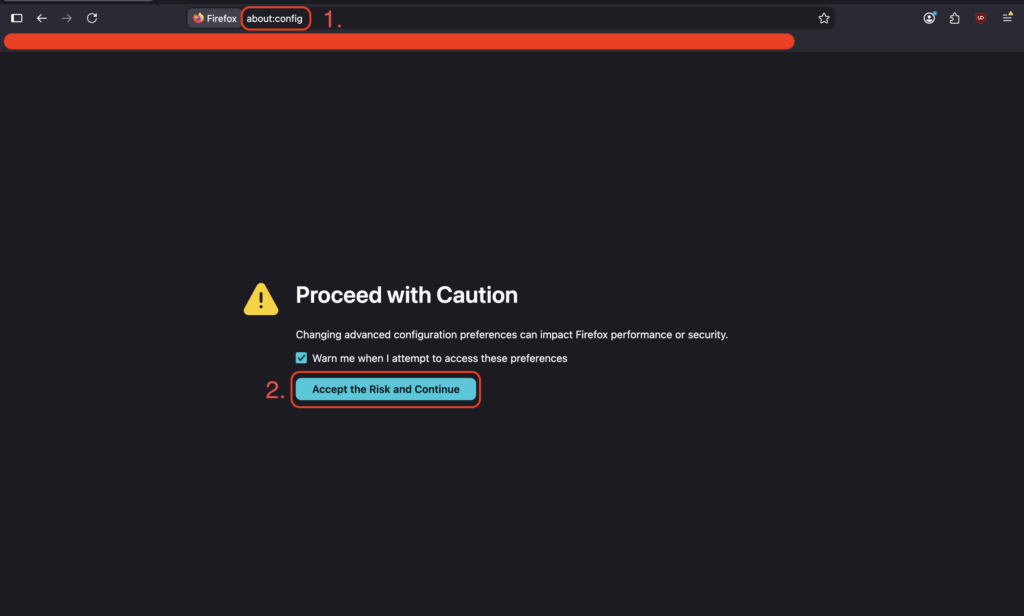
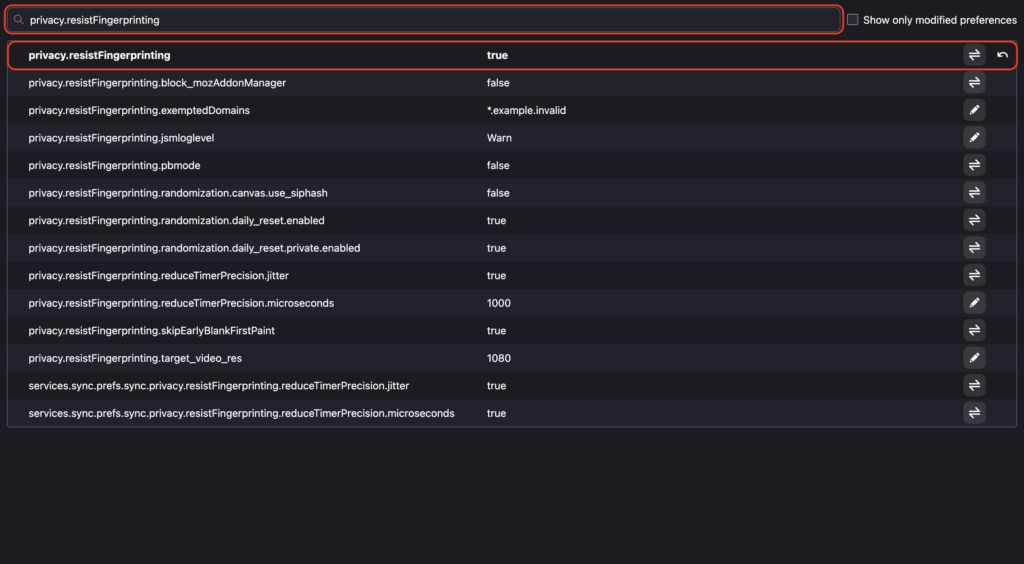
You can enable Resist Fingerprinting as follows: Type the following into the address bar „about:config“ → search for „privacy.resistFingerprinting“ → change its value to „true“.