Backing up your data is necessary because it can easily happen that the media on which the data is stored will be damaged and the data will be lost.
Hard drive or USB
You can easily back up all your files to an external hard drive or USB stick.
OneDrive
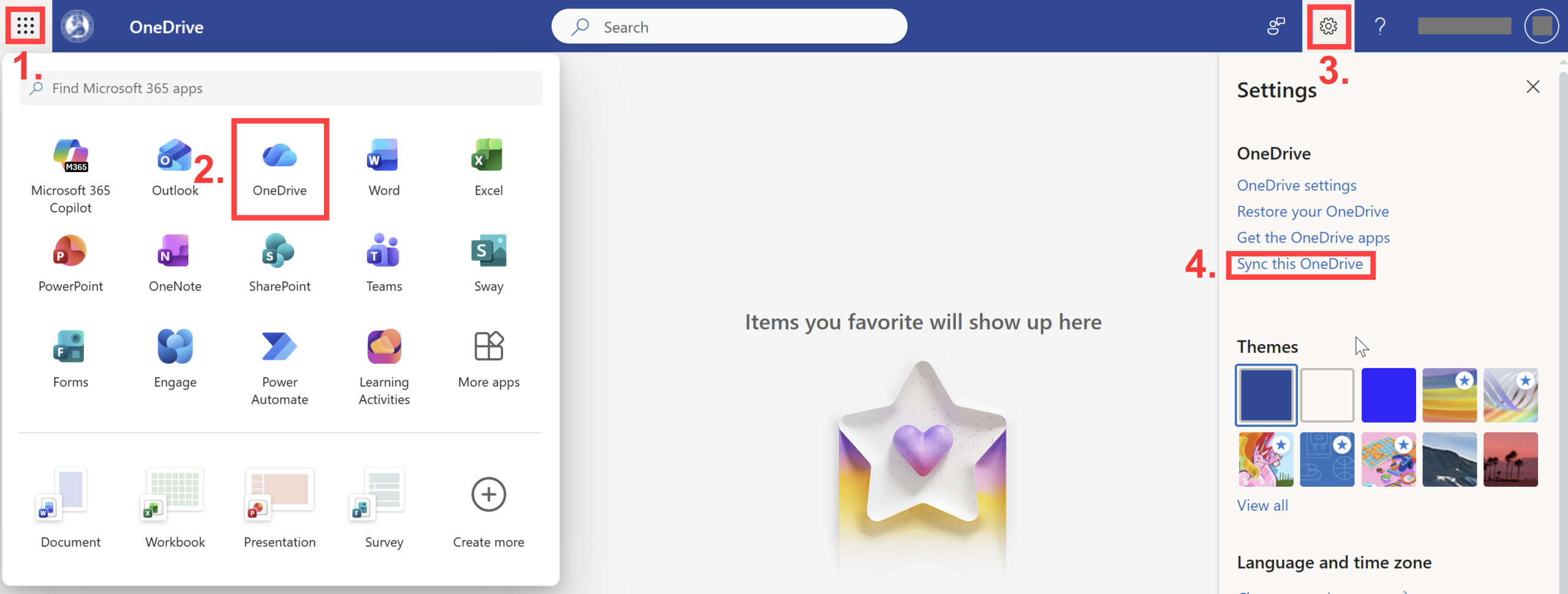
You can also back up your files using OneDrive, which you can find after logging into your school Outlook email account.
Clicking on the sync link will start the process of configuring your OneDrive storage. A shared folder will be created on your computer – this means that everything you upload to the shared folder will also be uploaded to your OneDrive.
Enter your email address and download the free version. Run the downloaded installation file. During installation, you will be offered McAfee antivirus, be careful not to install it and click “Decline”, not “Accept”. The free version is sufficient for normal use, so you can ignore the prompt to activate the “Home” version and click “Later”.
2. Creating a new backup plan for files
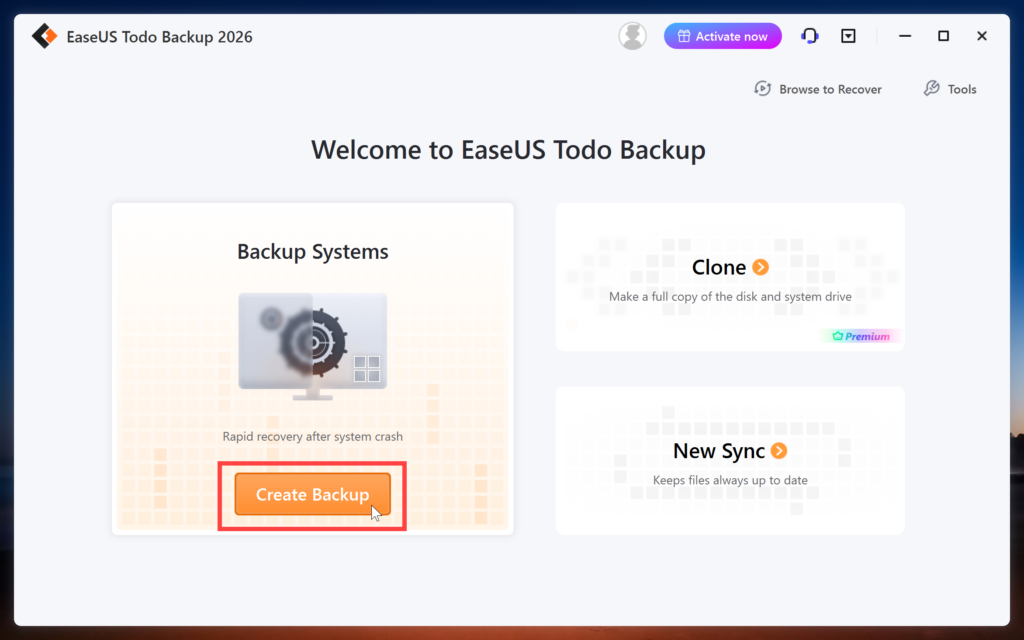
The application has been successfully installed. When the program starts, click on “Create Backup”. A section with the so-called Backup plan will open, where you can choose which files you want to back up and how. You can create several such Backup plans. One for work documents, another for your photos, etc.
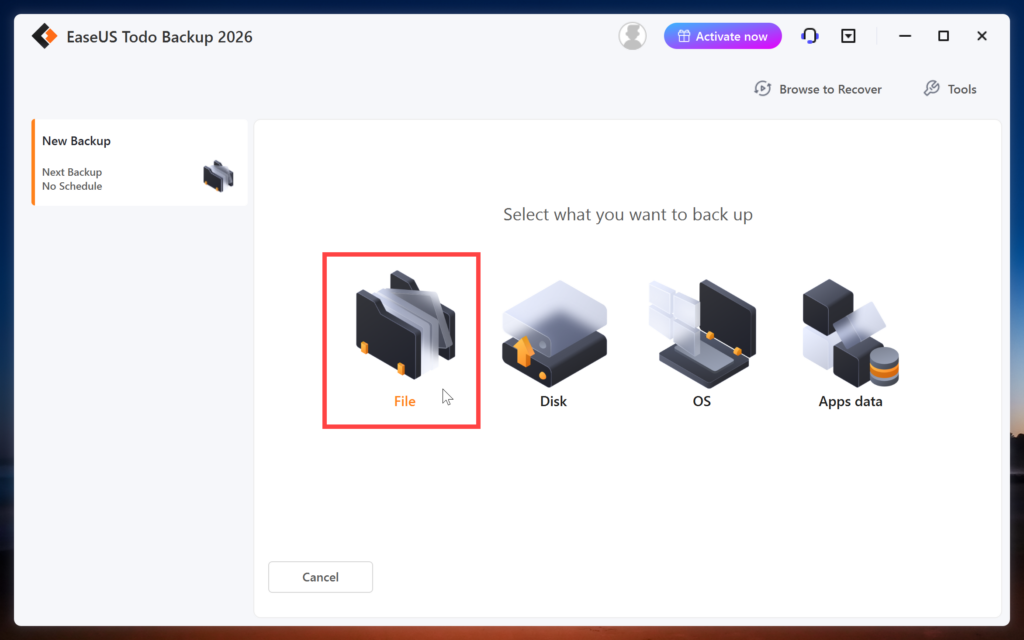
First of all, you need to choose what you want to back up. Click on “File”.
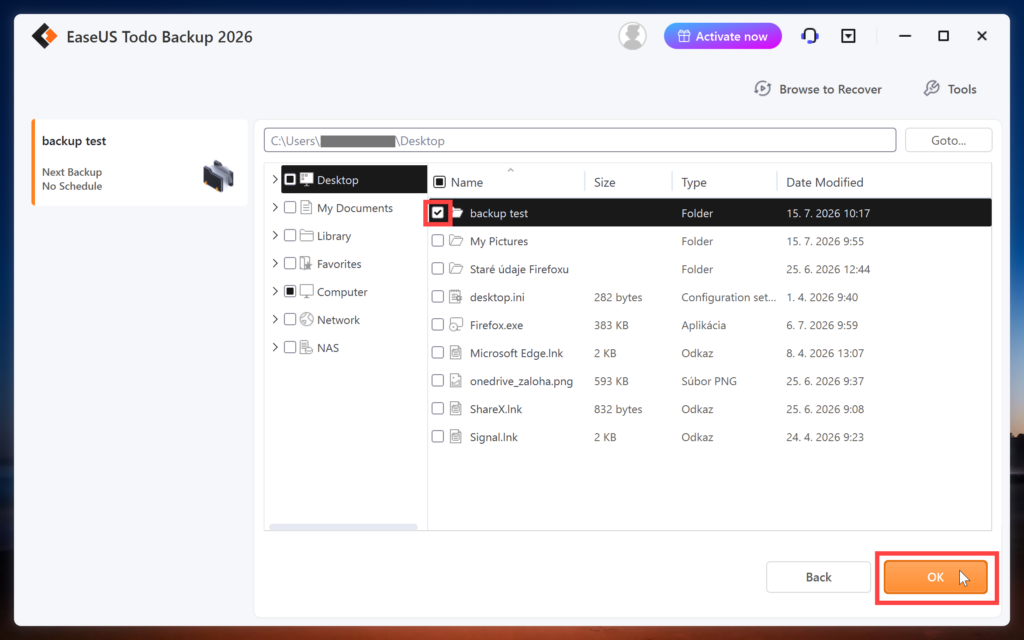
A file explorer will open where you can select one or more files and directories to back up.
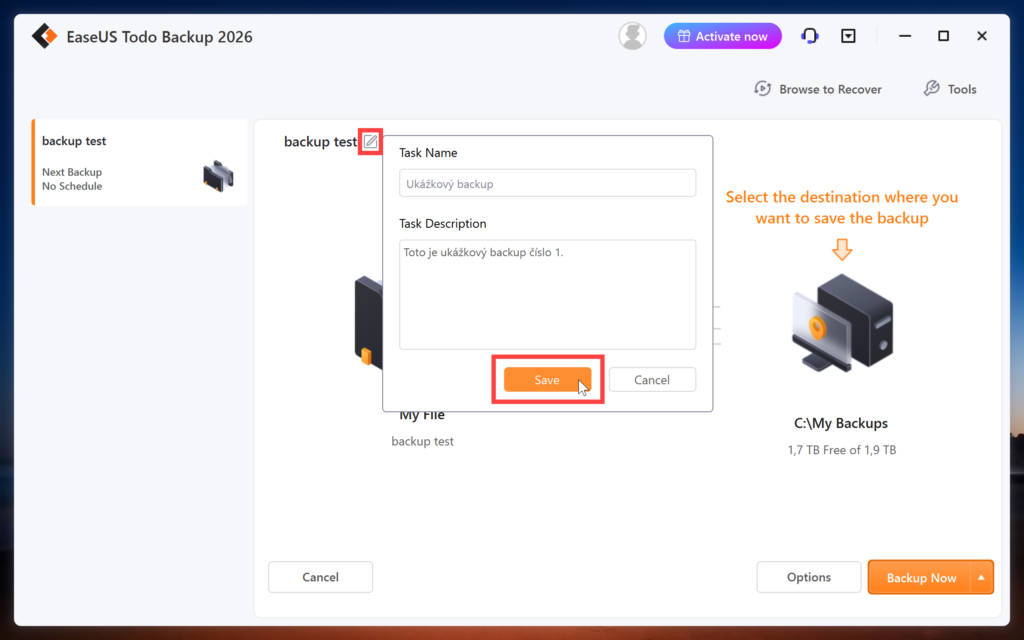
At the top, you can name this Backup plan or add a description.
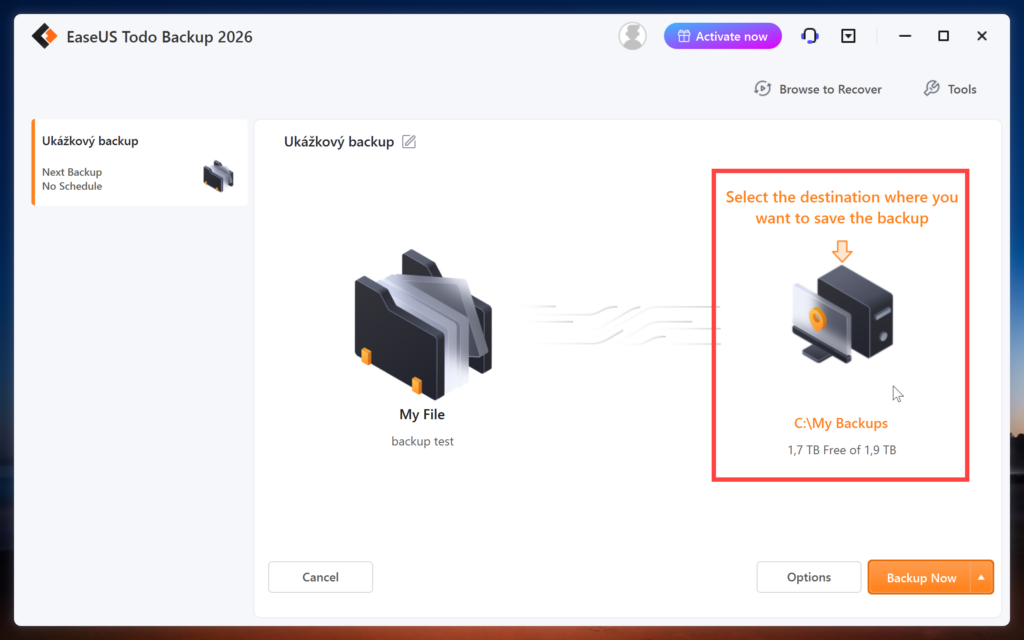
By clicking on the icon in the right part, you can select the location where this backup will be saved. It is good if backups are saved on another medium, not on the computer where the original version is. If something happens to the device, you will not only lose the original version, but also the backup. Therefore, we recommend making backups, for example, on an external hard drive or USB stick.
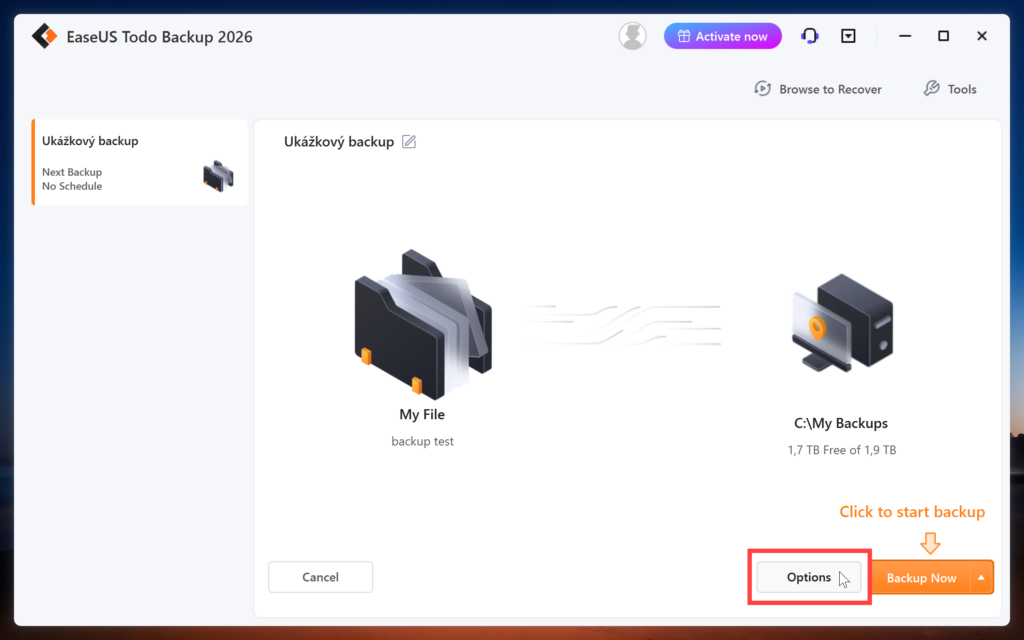
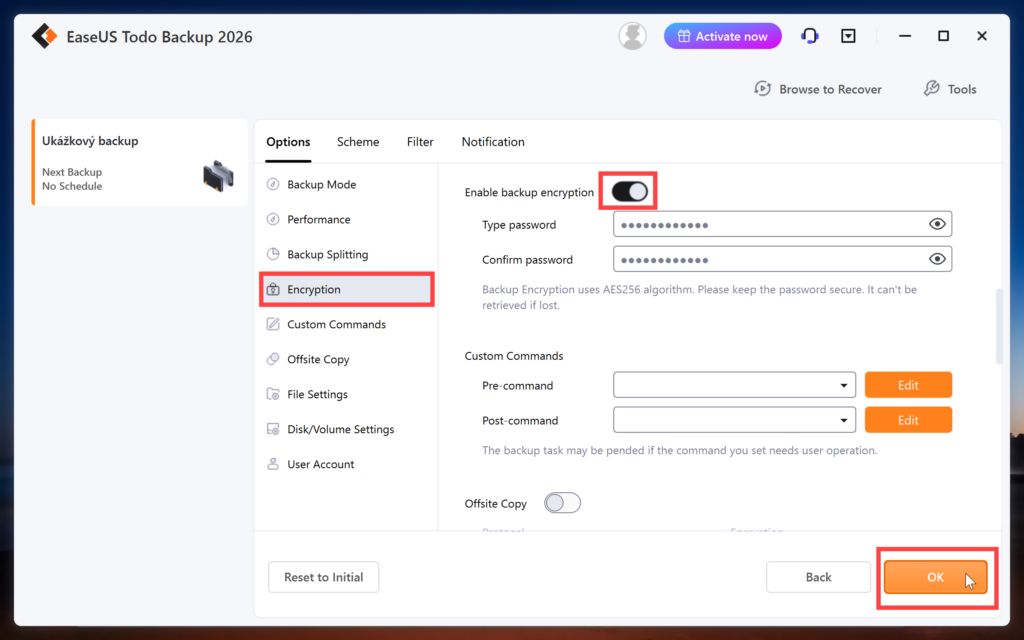
By clicking on "Options" and then on the "Encryption" section, you can set encryption for the given backup. Be careful, if you forget the password, you will not be able to access this backup.
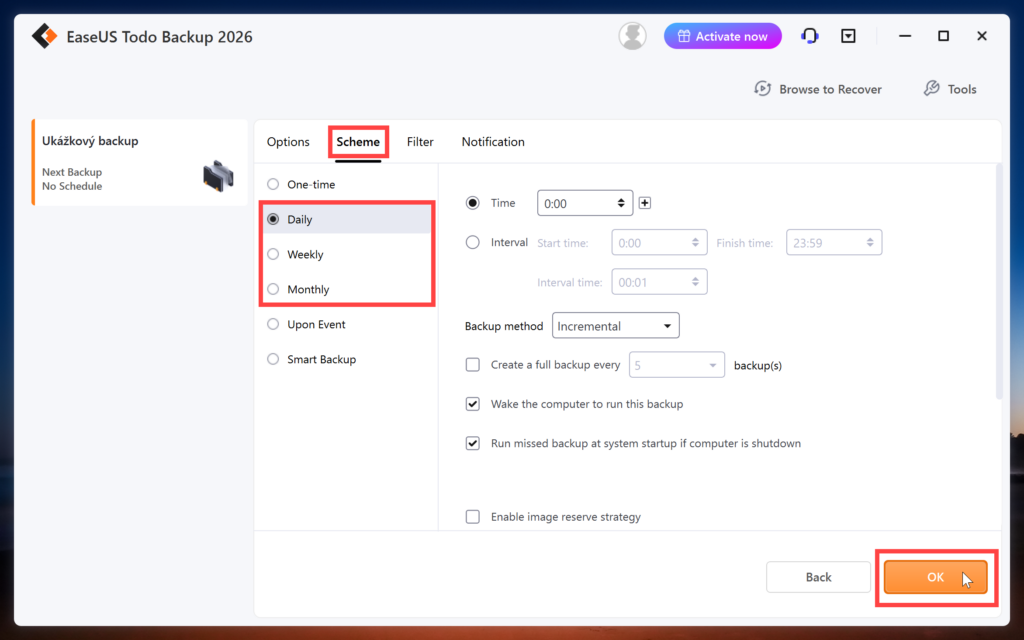
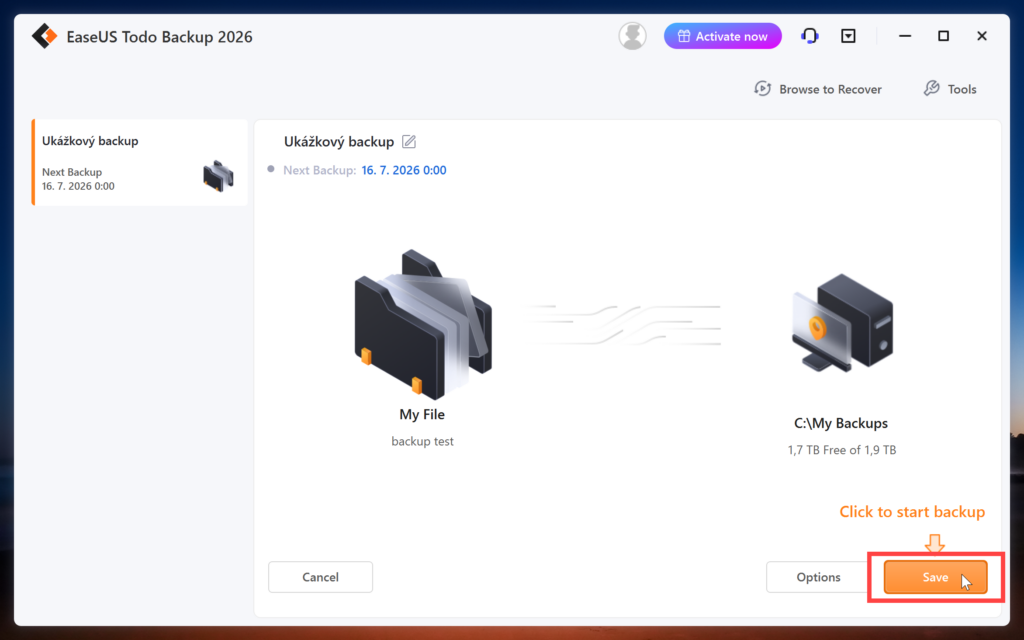
To set up a regular backup (daily, weekly, monthly) for a given Backup plan, click the "Scheme" tab. There is no need to change anything, just click one of the Daily, Weekly, or Monthly options and then save using the Save button.
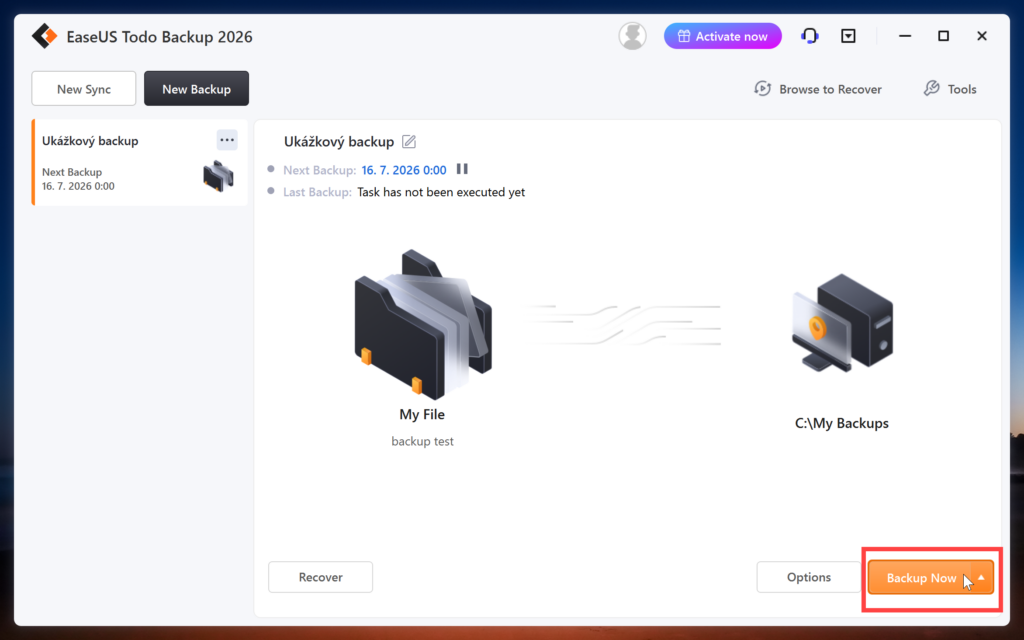
Clicking the "Save" and "Backup Now" buttons will start the backup.
3. Restoring files from backup
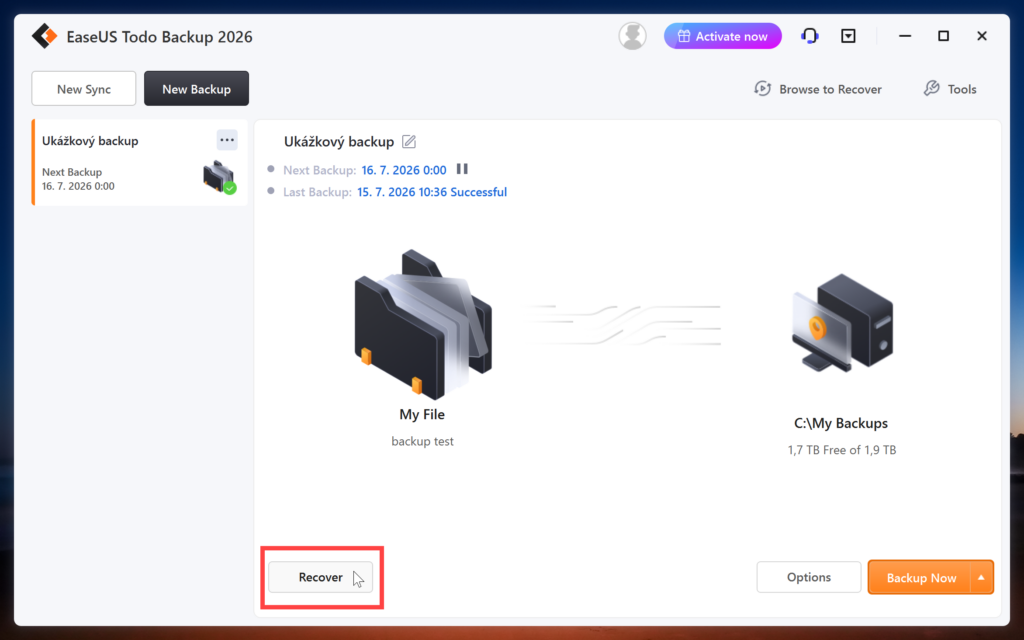
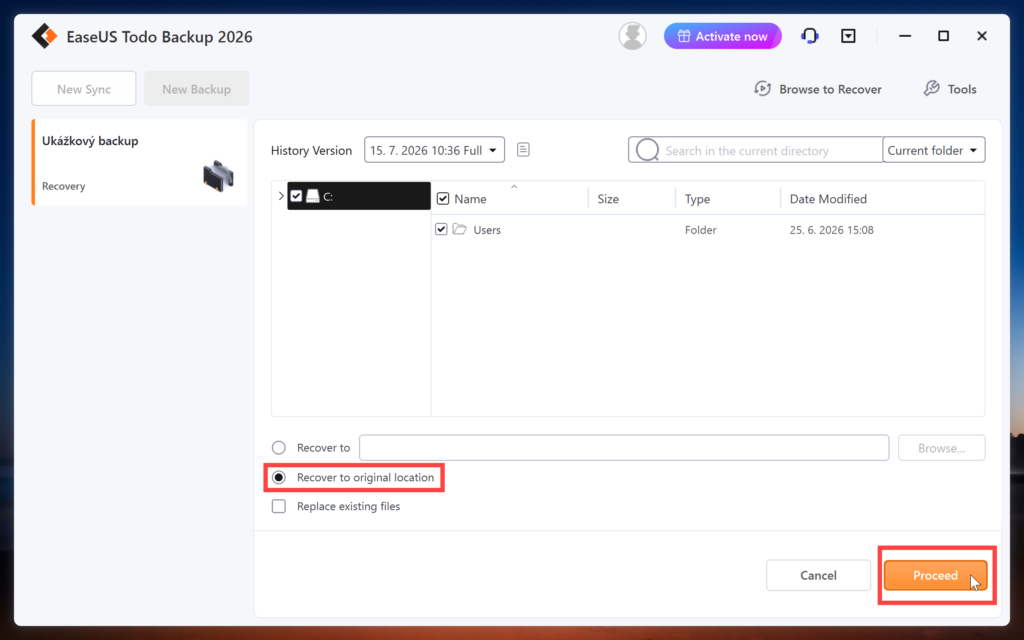
This is what the newly created Backup plan looks like. By clicking on “Recover”, you can restore the data from the backup either to its original location or to a different location. Here you set where you want to restore the data and click on “Proceed”.