iOS and iPad OS Security
iOS and iPad OS Security
Do you have an iPhone or iPad and want to set it up for the highest level of security and privacy? We have prepared a detailed guide for you that will help you set up all the security features in the iOS, iPad OS operating systems and protect your device and your privacy.
Návod je aplikovateľný na zariadenia s operačnými systémami, ku dňu 28.8.2026, iOS 26, iPadOS 26 (a novšie). Na staršie verzie operačných systémov sa niektoré kroky nevzťahujú.
1. Check your SoC (processor)
Procesory staršie ako Apple A12, teda Apple A11 a staršie, nepodporujú niektoré dôležité hardvérové bezpečnostné mechanizmy dostupné v novších generáciách čipov. Napríklad čipy od Apple A12 Bionic podporujú technológiu Pointer Authentication Codes (PAC), ktorá výrazne sťažuje niektoré typy útokov využívajúcich chyby poškodenia pamäte. Staršie zariadenia preto poskytujú nižšiu úroveň hardvérovej ochrany než novšie generácie.
Ak máte zariadenie s čipom Apple A11 alebo starším a používate ho na uchovávanie citlivých údajov, odporúčame zvážiť jeho výmenu za novšie zariadenie. Pri výbere nového zariadenia odporúčame okrem generácie čipu zohľadniť aj podporu aktuálnej verzie operačného systému a bezpečnostných aktualizácií.
Model svojho zariadenia si môžete overiť v Nastavenia → Všeobecné → Informácie → Názov modelu. Použitý čip si následne môžete overiť v technických špecifikáciách konkrétneho modelu na webovej stránke spoločnosti Apple. Napríklad iPhone XS a iPhone XR používajú čip Apple A12 Bionic.
2. Update your software
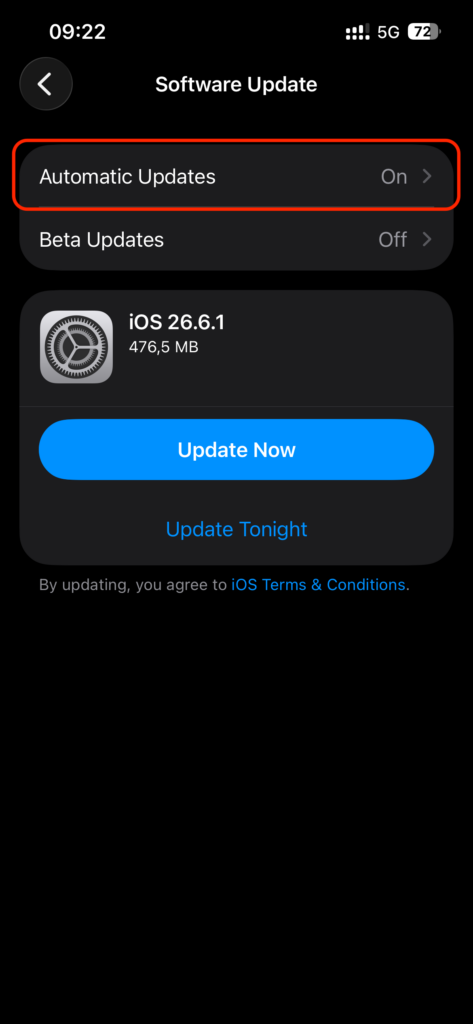
The best way to keep your devices and the data on them safe is to keep your operating system up to date. The latest versions of Apple's operating systems, including a list of vulnerabilities fixed in each update, are available on the Apple security updates website. We recommend that you turn on automatic updates for your operating system, which you can turn on by going to Settings → General → Software Update → Turn on Download iOS / iPad OS Updates and Install iOS / iPad OS Updates.
We also recommend turning on Security Measures and System Files. This optional feature allows you to receive important security updates to fix vulnerabilities without waiting for the next update.
3. Enable DNS over HTTPS (DoH)
Bežné DNS dotazy nie sú šifrované, takže prevádzkovateľ siete alebo útočník pripojený k rovnakej sieti môže vidieť, na aké domény sa vaše zariadenie pripája. DNS over HTTPS (DoH) odosiela DNS dotazy cez šifrované HTTPS spojenie, čím chráni tieto dotazy pred odpočúvaním a manipuláciou počas prenosu.
Okrem šifrovania DNS komunikácie môžete použiť aj DNS resolver, ktorý blokuje známe škodlivé domény. Takáto ochrana môže pomôcť napríklad pri blokovaní stránok so škodlivým softvérom alebo phishingom.
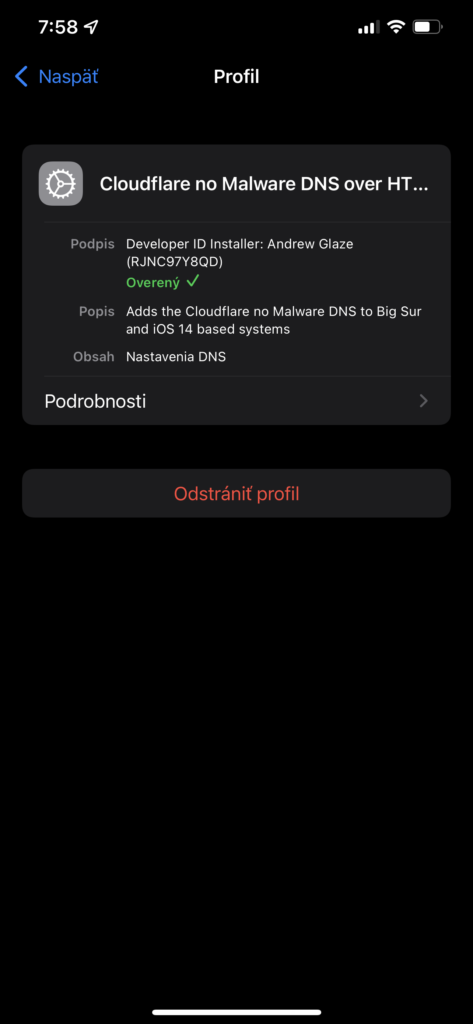
Pre jednoduché nastavenie môžete použiť nasledujúci konfiguračný profil pre iPhone a iPad, ktorý nastaví DNS resolver Cloudflare a používa DNS over HTTPS s filtrovaním škodlivých a phishingových domén:
Cloudflare 1.1.1.1 Security – konfiguračný profil
Profil pochádza z open-source projektu encrypted-dns a je podpísaný jeho autorom. Pred inštaláciou konfiguračného profilu odporúčame overiť jeho pôvod a obsah. Projekt zároveň uvádza, že v iPhone a iPade sa profil po stiahnutí inštaluje cez Nastavenia → Všeobecné → VPN, DNS a správa zariadenia.
Je potrebné si uvedomiť, že šifrovanie DNS chráni DNS komunikáciu pred ostatnými účastníkmi siete, ale samotný DNS resolver môže DNS dotazy vidieť. Šifrované DNS tiež nie je náhradou za ostatné bezpečnostné opatrenia.
4. Turn on 10-fail password wipe
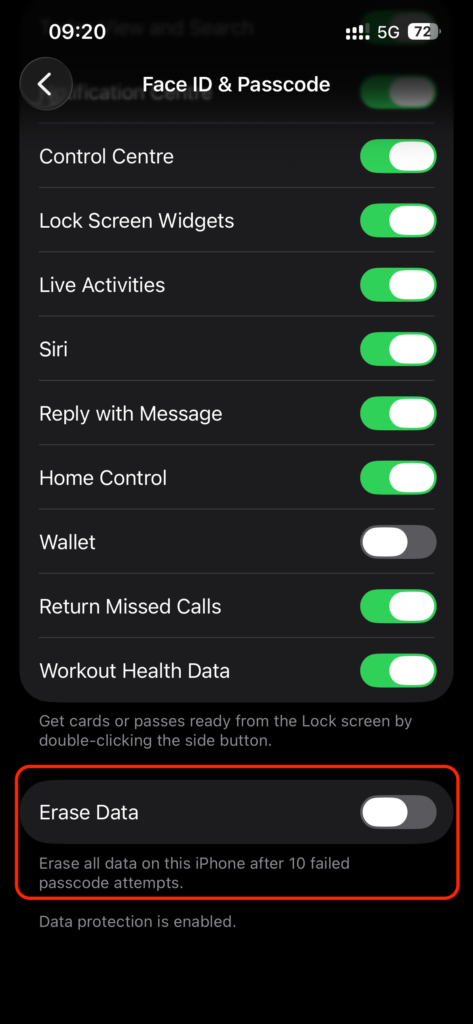
10-fail password wipe protects you not only from attackers manually entering your password, but also from automated programs and devices trying different passwords. In addition, this protection is implemented in a secure environment, which makes it extremely difficult to bypass. You can turn on this protection as follows: Settings → Touch ID & Passcode / Face ID & Passcode → Wipe Data. You can also turn on this protection for Apple Watch in the Watch app → Passcode → Turn on Wipe Data.
In this menu, we also recommend checking whether USB accessories are disabled, and on devices with Face ID, we recommend enabling Require Attention for Face ID. The disabled itemUSB accessories will not allow USB data connections after one hour of locking the device, which prevents the use of hardware tools to unlock your device. Require Attention for Face ID, on the other hand, will only allow unlocking the device with Face ID when you are looking at the device. This will prevent attackers from unlocking your device, for example, while you are sleeping.
5. Install a content blocker in Safari
The Safari browser allows you to install third-party content blockers. These content blockers can block both ads and trackers, as well as various malicious and fraudulent sites. The way these content blockers are implemented also protects your browsing data from the content blockers themselves. Therefore, the user does not have to trust individual content blockers, unlike browser extensions.
Installed content blockers can be enabled in Settings → Safari → Extensions, under Enable the following content blockers. Popular content blockers include AdGuard or 1Blocker.
6. Stop websites and apps from tracking your activity
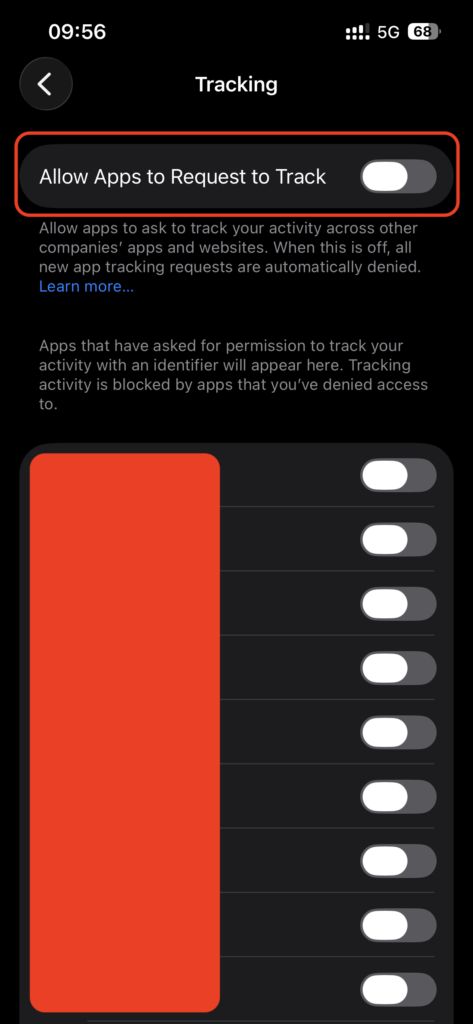
iOS a iPadOS umožňujú aplikáciám požiadať o povolenie sledovať vašu aktivitu naprieč aplikáciami a webovými stránkami iných spoločností. Takéto sledovanie sa môže využívať napríklad na vytváranie profilu používateľa a zobrazovanie personalizovanej reklamy.
Povolenia na sledovanie môžete spravovať v Nastavenia → Súkromie a zabezpečenie → Sledovanie. Odporúčame vypnúť možnosť Povoliť apkám žiadať o sledovanie. Tým zabránite aplikáciám, aby vás žiadali o povolenie na sledovanie, a nové žiadosti budú automaticky zamietnuté.
V Safari môžete zároveň obmedziť využívanie údajov na účely merania reklamy. Nastavenie nájdete v Nastavenia → Aplikácie → Safari → Pokročilé → Povoliť meranie reklamy na ochranu súkromia. Ak túto funkciu vypnete, Safari nebude poskytovať údaje potrebné na meranie účinnosti reklamy týmto spôsobom.
7. Turn off sending your location and data for telemetry and service improvement purposes
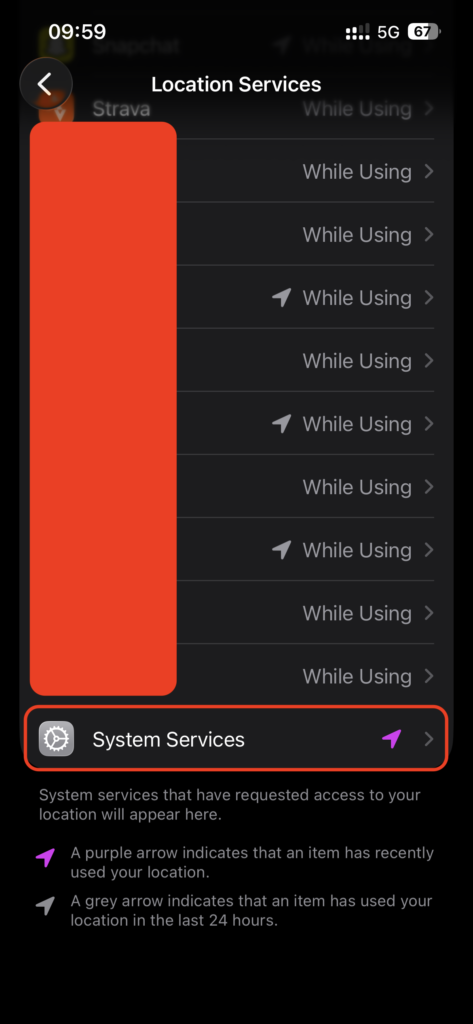
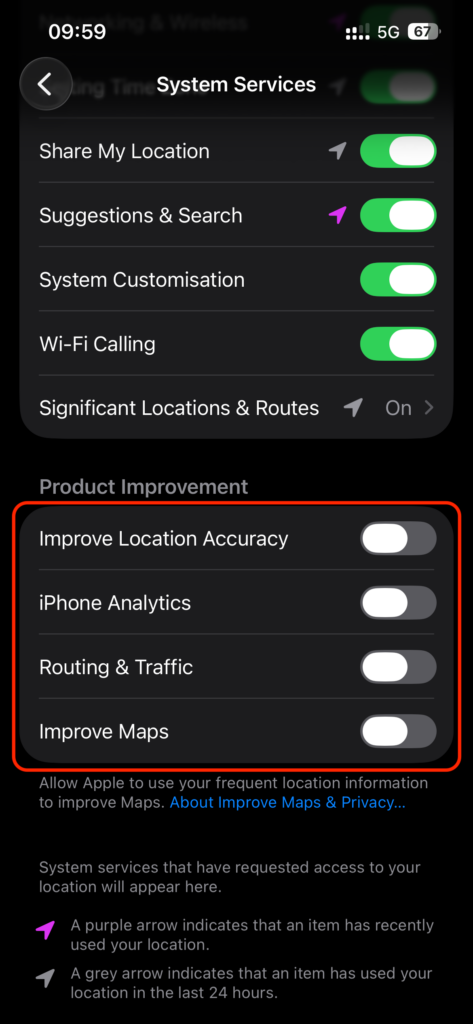
Apple systems send data about your devices, your habits, and also your location for the purpose of improving services. You can turn off sending your location for the purpose of improving services using the option: Settings → Privacy → Location Services → System Services → Turn off iPhone Analytics, Directions & Traffic, Improve Maps.
You can turn off sending data using: Settings → Privacy → Analytics & Improvement → Turn off Share iPhone (and Watch) Analytics.
8. Check sensitive app permissions
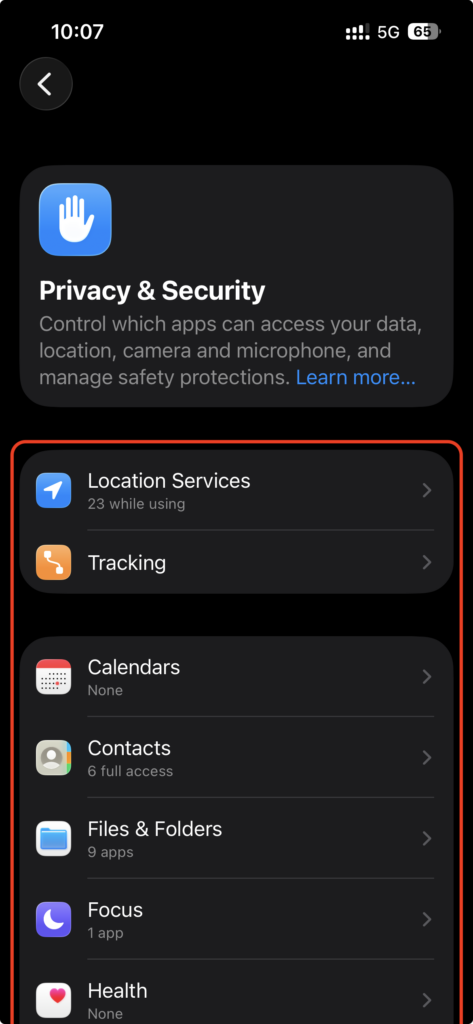
iOS and iPad OS apps operate in a sandbox, where they only have access to user data that the user approves. However, many apps request permissions that are not necessary for their functionality, in order to track the user. It is also a good practice to remove permissions for unused apps.
You can check app permissions in the Settings → Privacy menu, and the most sensitive permissions related to personal data include Location Services, Contacts, Calendars, Reminders, Photos, Microphone, Camera, Health. Permissions for Bluetooth or Local network are often abused to track the user.
9. Turn off content on the lock screen that you don't need there
In menu In the Settings menu → Face ID & Passcode / Touch ID & Passcode → under under Allow access from lock screen, you can turn off some features that are accessible from the lock screen by default. Features like Siri have been used to bypass the lock screen in the past, so it is recommended to turn off all features that you are not actively using.
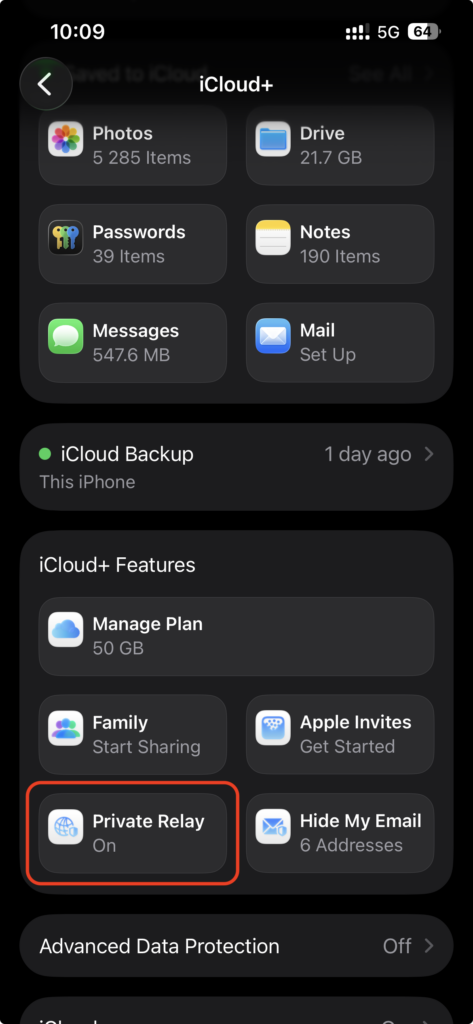
10. Turn on the Private Relay feature
Private Relay (iCloud Private Relay) je funkcia služby iCloud+, ktorá pomáha chrániť súkromie pri prehliadaní webu v Safari. Nejde o klasickú VPN a nechráni všetku komunikáciu zariadenia. Pri používaní Safari šifruje DNS požiadavky a internetovú prevádzku a využíva systém dvoch samostatných relé serverov. Prvý server pozná vašu IP adresu, ale nevie, aké webové stránky navštevujete. Druhý server pozná požadovanú webovú stránku, ale nepozná vašu skutočnú IP adresu. Webové stránky tak nemajú prístup k vašej skutočnej IP adrese a poskytovateľ internetového pripojenia zároveň nemôže jednoducho zistiť, aké konkrétne webové stránky v Safari navštevujete.
Súkromný prenos je dostupný pre predplatiteľov služby iCloud+. Funkciu môžete zapnúť v Nastavenia → Vaše meno → iCloud → Súkromný prenos.
V systéme iOS 26 môžete ochranu IP adresy spravovať aj samostatne pre jednotlivé Wi-Fi siete a mobilné pripojenie pomocou funkcie Obmedziť sledovanie IP adresy. Odporúčame túto ochranu ponechať zapnutú, ak nepotrebujete z konkrétneho dôvodu zobraziť webovým stránkam alebo poskytovateľovi siete svoju skutočnú IP adresu.
Súkromný prenos však nenahrádza VPN ani ostatné bezpečnostné opatrenia. Nechráni napríklad komunikáciu aplikácií, ktoré nepoužívajú Safari, a nie je určený na obchádzanie geografických obmedzení obsahu.
11. Encrypt device backups on your computer
If you use Finder or iTunes to back up your devices, we strongly recommend that you protect your backups with a strong password. Unencrypted backups are a potential vulnerability, and an attacker who gains access to your computer would also gain access to the data on your phone or tablet. You can read more about encrypting backups in Finder or iTunes in Apple’s documentation.
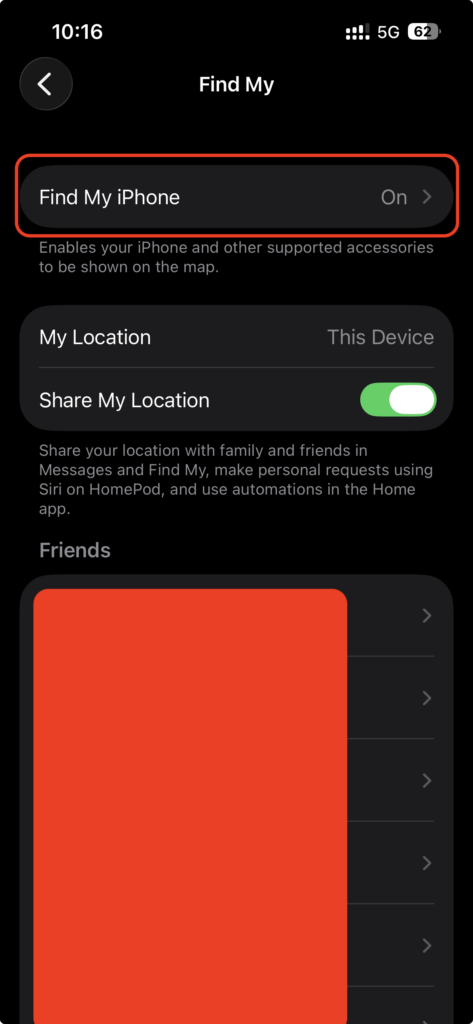
12. Turn on Find function
Find My iPhone, iPad, and Watch lets you remotely locate, erase, and ring a lost device. This is possible on some devices even when they are offline or turned off. You can activate Find function in Settings → Your Name → Find My iPhone/iPad → and turn on Find My iPhone/iPad, Find My Network, Send Last Location..
13. Make sure you only sync the data you want to iCloud
Not all data synced to iCloud from your devices is protected by end-to-end encryption. Some data, such as photos, contacts, browser bookmarks, or device backups, is encrypted only in a way that is still readable by Apple and third parties with whom Apple shares the data. A list of data that is and is not protected by end-to-end encryption is available in Apple’s documentation.
It is recommended to turn off backups of data that you do not need to have backed up in the cloud. You can see the list of data that is backed up in the following menu: Settings → Your name → iCloud..
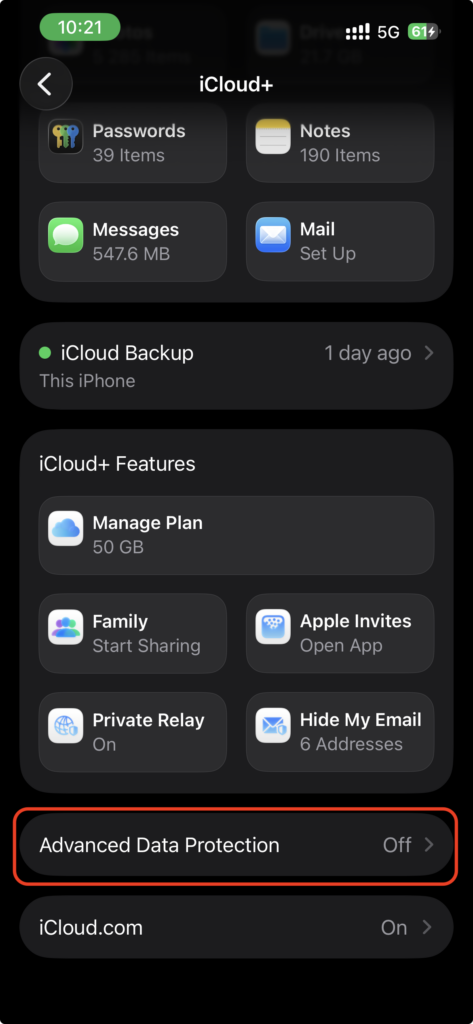
14. Turn on Advanced Data Protection for iCloud
Advanced Data Protection for iCloud provides a high level of security for your data stored in the cloud available on your devices. When this mode is enabled, most of your data in iCloud, such as backups, photos, notes, and more, protected by end-to-end encryption. This means your data is encrypted before it’s sent to Apple’s servers, so it stays secure even if your data is compromised in the cloud. Your data stays private and inaccessible to anyone, not even Apple.
Settings → Your Name → iCloud → Advanced Data Protection → Turn on Advanced Data Protection
15. Lockdown Mode
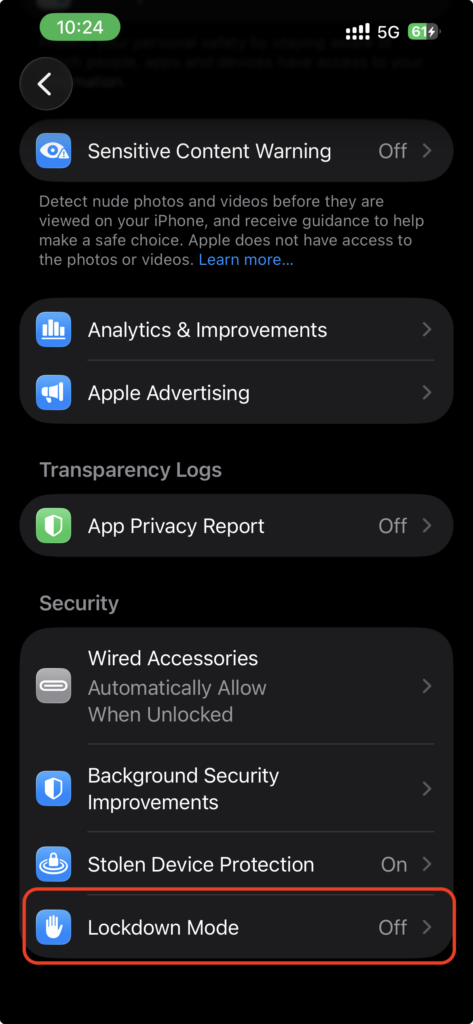
Lockdown Mode is a powerful device protection that can be activated to protect people at high risk of attack. In this mode, some app features are blocked or restricted to provide greater device protection. For example, incoming FaceTime calls are blocked if you have not previously called the person or contact, certain web technologies, or the installation of configuration profiles are also blocked. Despite the restrictions, users in Lockdown Mode can still use phone calls and text messages, as well as emergency functions. For a detailed list of apps and restrictions, see Apple's documentation. dokumentácii od spoločnosti Apple.
You can activate Lockdown Mode as follows: Settings → Privacy & Security → Lockdown Mode.
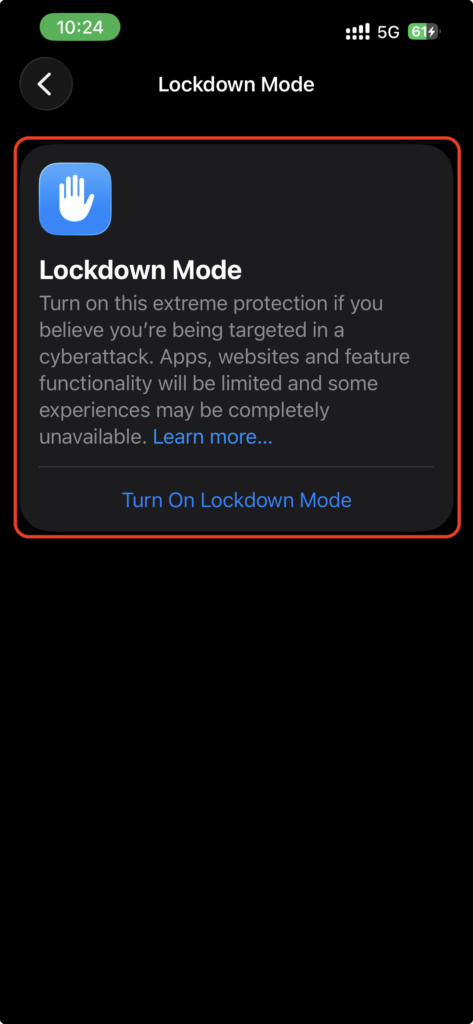
It is possible to exclude certain applications or websites from the device's lock mode only if necessary and only if the application or website is trustworthy. You can disable the exclusion of certain applications in this way: Settings → Privacy → Lock mode → Configure web browsing.
16. Stolen Device Protection
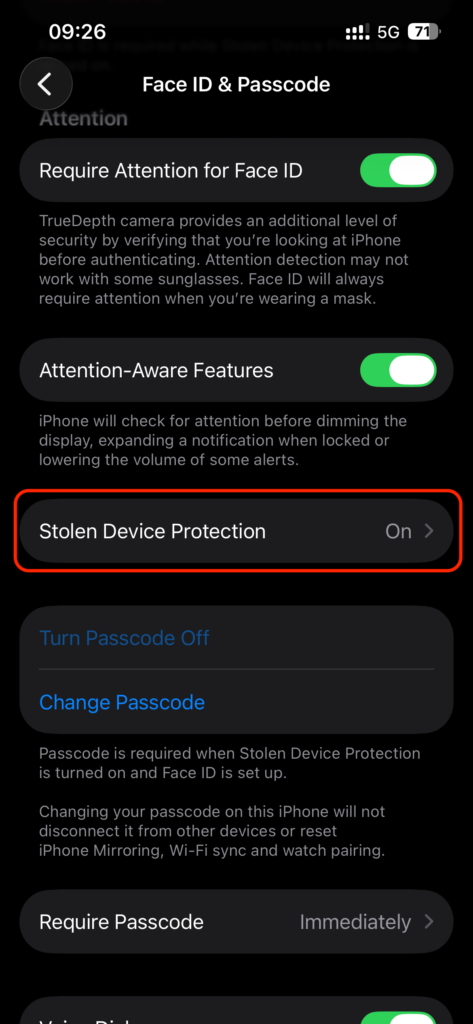
Ochrana ukradnutého zariadenia (Stolen Device Protection) je bezpečnostná funkcia dostupná na iPhone so systémom iOS 17.3 a novším. Jej cieľom je chrániť citlivé údaje a nastavenia v prípade, že útočník pozná kód na odomknutie zariadenia a zároveň ho fyzicky ukradne.
Ak sa iPhone nachádza mimo známych lokalít, napríklad mimo domova alebo pracoviska, funkcia pri vybraných citlivých operáciách vyžaduje biometrické overenie pomocou Face ID alebo Touch ID bez možnosti použiť kód ako náhradný spôsob overenia. Týka sa to napríklad prístupu k uloženým heslám a platobným údajom, vypnutia režimu strateného zariadenia, vymazania obsahu a nastavení zariadenia či vykonania ďalších citlivých zmien v Apple účte a nastaveniach zabezpečenia.
Pri niektorých operáciách navyše ochrana zavádza bezpečnostné oneskorenie. Používateľ musí najskôr vykonať biometrické overenie, určitý čas počkať a následne vykonať biometrické overenie znova. Útočník tak nemôže po získaní kódu zariadenia okamžite zmeniť bezpečnostné nastavenia alebo prevziať kontrolu nad účtom.
V systéme iOS 26 je možné nastaviť Ochranu ukradnutého zariadenia tak, aby sa zvýšené bezpečnostné požiadavky uplatňovali vždy, nielen mimo známych lokalít. Pre používateľov, ktorí chcú dosiahnuť čo najvyššiu úroveň ochrany, odporúčame zvoliť túto možnosť.
Ochranu ukradnutého zariadenia môžete zapnúť v: Nastavenia → Face ID a kód → Ochrana ukradnutého zariadenia. Po zapnutí odporúčame v nastavení Vyžadovať bezpečnostné oneskorenie zvoliť možnosť Vždy, ak chcete maximálnu úroveň ochrany aj na miestach, ktoré iPhone považuje za známe.
Od systému iOS 26.4 Apple túto ochranu automaticky zapína pri nastavovaní nových iPhonov a pri obnove iPhonu zo zálohy, ak zariadenie používa iOS 26.4 alebo novší. Aj napriek tomu odporúčame skontrolovať jej nastavenie a podľa svojich požiadaviek zvoliť možnosť Vždy.
Je potrebné si uvedomiť, že táto funkcia môže pri bežnom používaní spôsobiť určité komplikácie, pretože pri niektorých citlivých operáciách bude vyžadovať biometrické overenie alebo bezpečnostné oneskorenie aj v situáciách, keď používateľ zariadenie považuje za bezpečné. Z hľadiska bezpečnosti však predstavuje významnú ochranu najmä proti scenáru, pri ktorom útočník pozná kód na odomknutie vášho iPhonu.
17. Zapnite dvojfaktorové overenie Apple účtu
Bezpečnosť iPhonu alebo iPadu úzko súvisí aj s bezpečnosťou vášho Apple účtu. Prostredníctvom Apple účtu máte prístup nielen k svojim zariadeniam, ale aj k údajom uloženým v iCloude, ako sú fotografie, kontakty, poznámky, zálohy a ďalšie osobné údaje. Preto odporúčame mať na Apple účte vždy zapnutú dvojfaktorovú autentifikáciu.
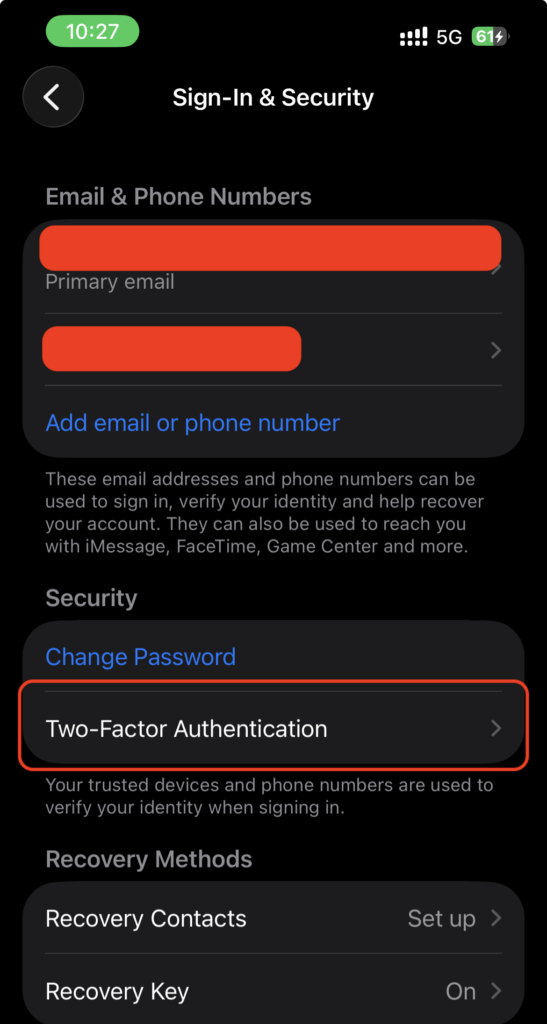
Dvojfaktorová autentifikácia pridáva k heslu ďalšiu úroveň ochrany. Pri prihlásení do Apple účtu na novom zariadení alebo vo webovom prehliadači je okrem hesla potrebné zadať aj šesťciferný overovací kód, ktorý sa zobrazí na dôveryhodnom zariadení alebo sa odošle na dôveryhodné telefónne číslo. Samotné získanie hesla tak útočníkovi spravidla nestačí na prihlásenie do vášho účtu.
Dvojfaktorovú autentifikáciu môžete skontrolovať alebo nastaviť v Nastavenia → Vaše meno → Prihlásenie a zabezpečenie → Dvojfaktorová autentifikácia.
Odporúčame tiež skontrolovať dôveryhodné telefónne čísla a zariadenia priradené k vášmu Apple účtu. Odstráňte zariadenia, ktoré už nevlastníte alebo ich nespoznávate. Zároveň je vhodné mať k dispozícii dôveryhodné telefónne číslo, ku ktorému budete mať prístup aj v prípade straty alebo poškodenia svojho iPhonu.
Pre prípad straty prístupu k účtu odporúčame nastaviť aj kontakt na obnovu účtu. Ide o dôveryhodnú osobu, ktorá vám v prípade potreby môže pomôcť s obnovením prístupu k účtu. Kontakt na obnovu pritom nemá prístup k vášmu účtu ani k vašim údajom.
Používatelia, ktorí požadujú maximálnu úroveň ochrany, môžu zvážiť aj vytvorenie kľúča obnovy. Ide o 28-znakový kód, ktorý môže byť potrebný na obnovenie prístupu k účtu. Kľúč obnovy je však potrebné bezpečne uchovať, pretože jeho strata spolu so stratou hesla a dôveryhodných zariadení môže viesť k trvalej strate prístupu k účtu.
Odporúčame preto minimálne zapnúť dvojfaktorovú autentifikáciu, skontrolovať dôveryhodné telefónne čísla a zariadenia a nastaviť kontakt na obnovu účtu. Kľúč obnovy odporúčame používať najmä používateľom, ktorí požadujú maximálnu úroveň ochrany a dokážu ho bezpečne uchovať.
18. Kontrola pripojených zariadení k Apple Accountu
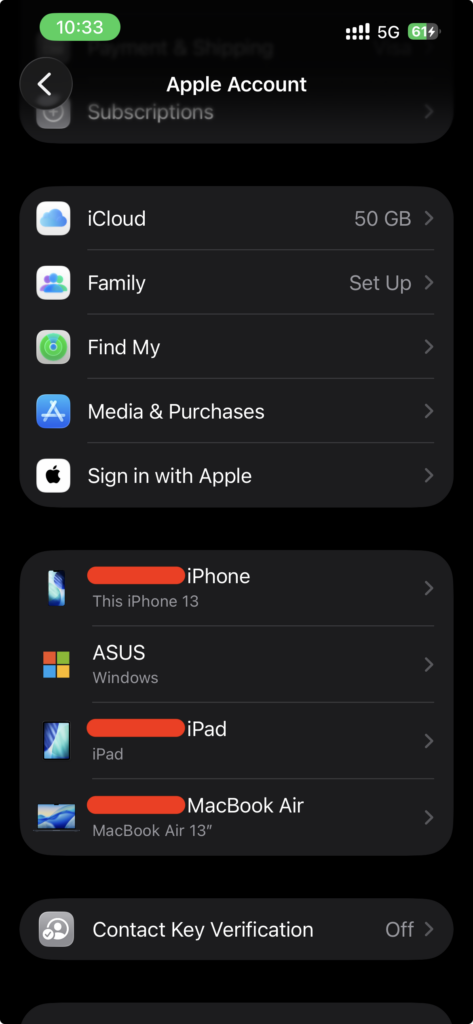
Odporúčame pravidelne skontrolovať zoznam zariadení prihlásených k vášmu Apple účtu. Ak sa k vášmu účtu dostane neznáme alebo už nepoužívané zariadenie, môže predstavovať bezpečnostné riziko, pretože dôveryhodné zariadenia môžu slúžiť na overenie vašej identity a zobrazovanie overovacích kódov.
Zoznam zariadení môžete skontrolovať v Nastavenia → Vaše meno. Zobrazia sa vám všetky iPhony, iPady, Macy, Apple Watch a ďalšie zariadenia prihlásené k vášmu Apple účtu.
Odporúčame skontrolovať najmä názov zariadenia, jeho model a ďalšie dostupné informácie. Ak nájdete zariadenie, ktoré už nevlastníte, nepoužívate alebo ho nespoznávate, odstráňte ho zo svojho účtu. Zariadenie môžete vybrať zo zoznamu a následne zvoliť možnosť Odstrániť z účtu.
Ak sa v zozname nachádza zariadenie, ktoré nespoznávate, odporúčame okrem jeho odstránenia zmeniť heslo k Apple účtu a skontrolovať aj dôveryhodné telefónne čísla a ďalšie nastavenia zabezpečenia účtu. Ak máte podozrenie, že niekto získal prístup k vášmu účtu, je vhodné skontrolovať aj zariadenia a služby, ktoré sú k účtu pripojené.
Túto kontrolu odporúčame vykonať aj po predaji, darovaní alebo vyradení starého iPhonu či iPadu. Pred odovzdaním zariadenia je zároveň potrebné zariadenie správne odhlásiť z Apple účtu a vymazať jeho obsah a nastavenia.
Odporúčame preto pravidelne kontrolovať zoznam zariadení pripojených k Apple účtu a okamžite odstrániť všetky zariadenia, ktoré už nevlastníte alebo ich nespoznávate.