Microsoft Edge security
Microsoft Edge security
Microsoft Edge is the default browser in Windows and has become popular thanks to its speed and built-in productivity tools. However, as with other browsers, you can enhance security and privacy in Edge by changing certain settings. For example, you can disable certain settings that share data with Microsoft and use extensions to block ads and tracking.
This guide was created for Microsoft Edge version 152, but you'll also find many extensions and settings in older versions of the browser.
1. Enabling stricter tracking prevention
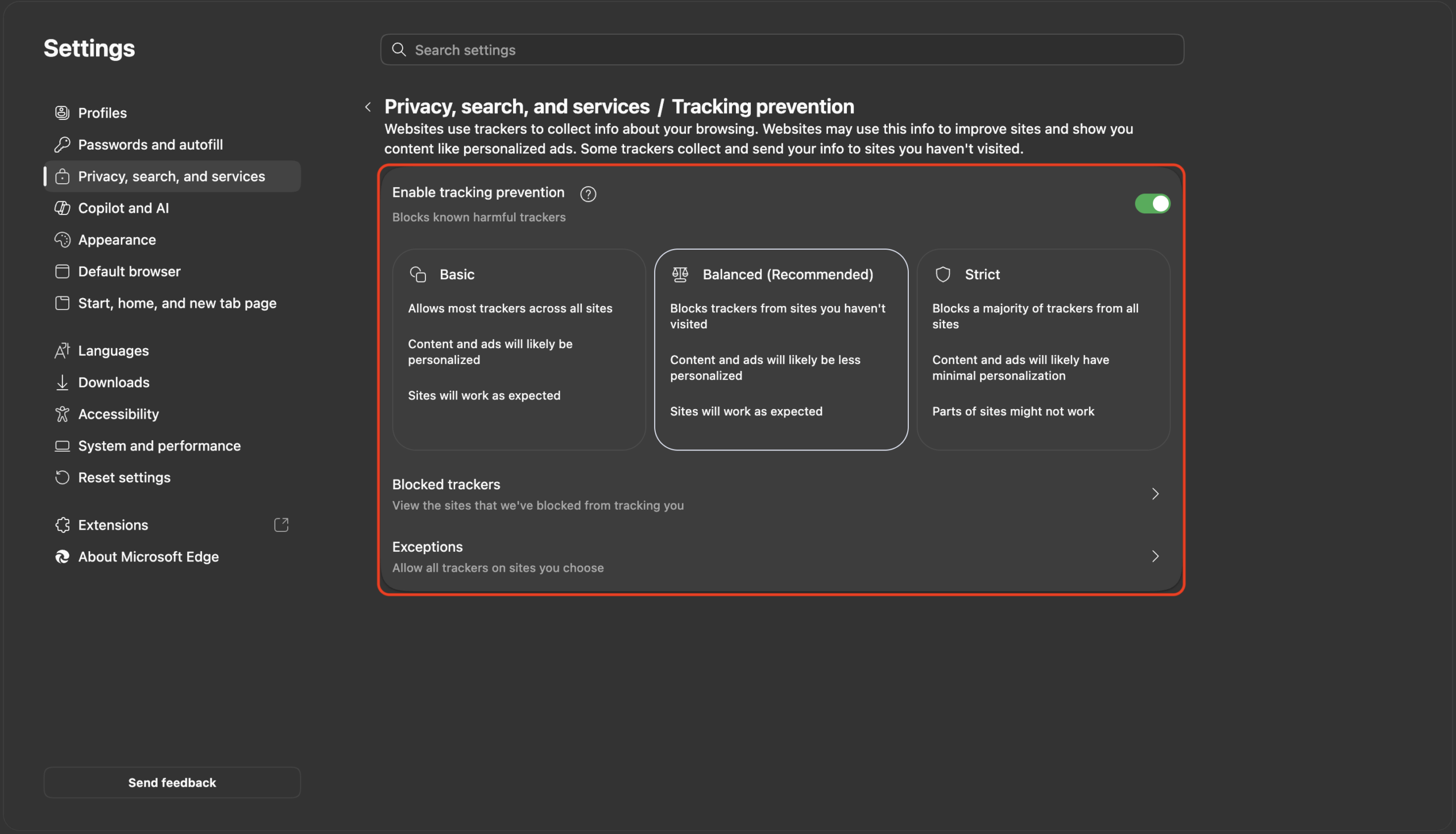
When using the Microsoft Edge web browser, it is important to ensure adequate protection against tracking. Therefore, it is a good idea to enable stricter tracking protection, which can block unwanted elements on websites and prevent your personal data from being sent to third parties. This feature also limits cookies and thus protects your privacy. That's why it's important to enable stricter tracking protection in Microsoft Edge to ensure maximum protection of your personal data and privacy.
Settings → Privacy, search, and services. Check that the item Enable tracking prevention is Enabled and Strict.
2. Enabling Enhanced Online Security
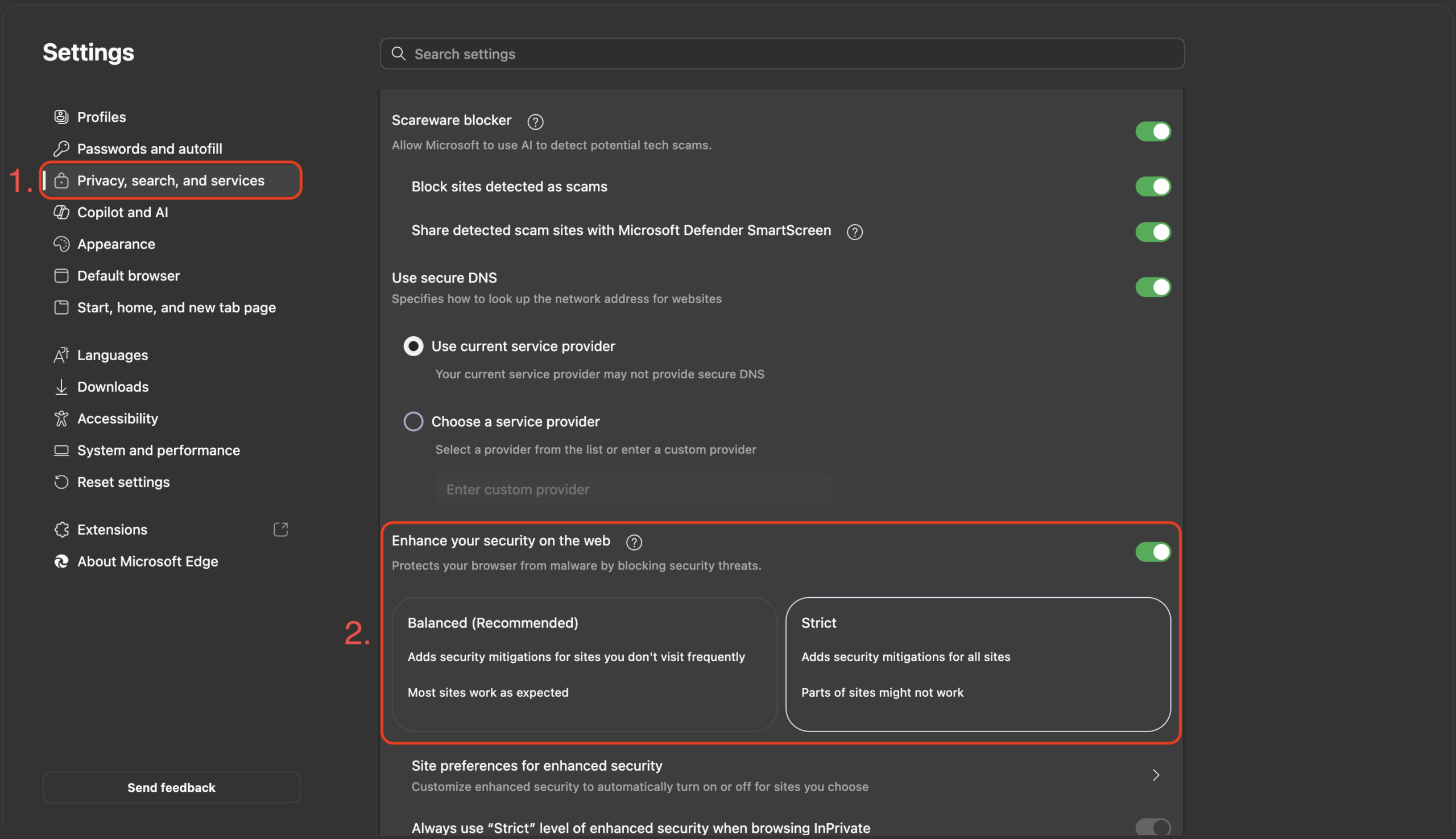
Microsoft Edge offers features to enhance the security of your web browsing. Enhanced Security Mode makes it harder for attackers to exploit security vulnerabilities in the browser itself, such as through a malicious website. When this mode is enabled, Edge disables certain JavaScript optimizations and enables additional protections. Some web pages may load slightly slower. If a web page doesn't work properly in Enhanced Security Mode, you can add it to the list of exceptions.
Settings → Privacy, Search, and Services → In the section Security make sure the switch Enhance your security on the web is Enabled and Strict.
3. Changing the default search engine to Startpage.com
Startpage.com is a search engine from the Netherlands that protects its users' privacy. It does not use any tracking files, does not store search queries, and does not log IP addresses. Search results from Startpage.com are sourced directly from Google, so they are accurate and relevant.
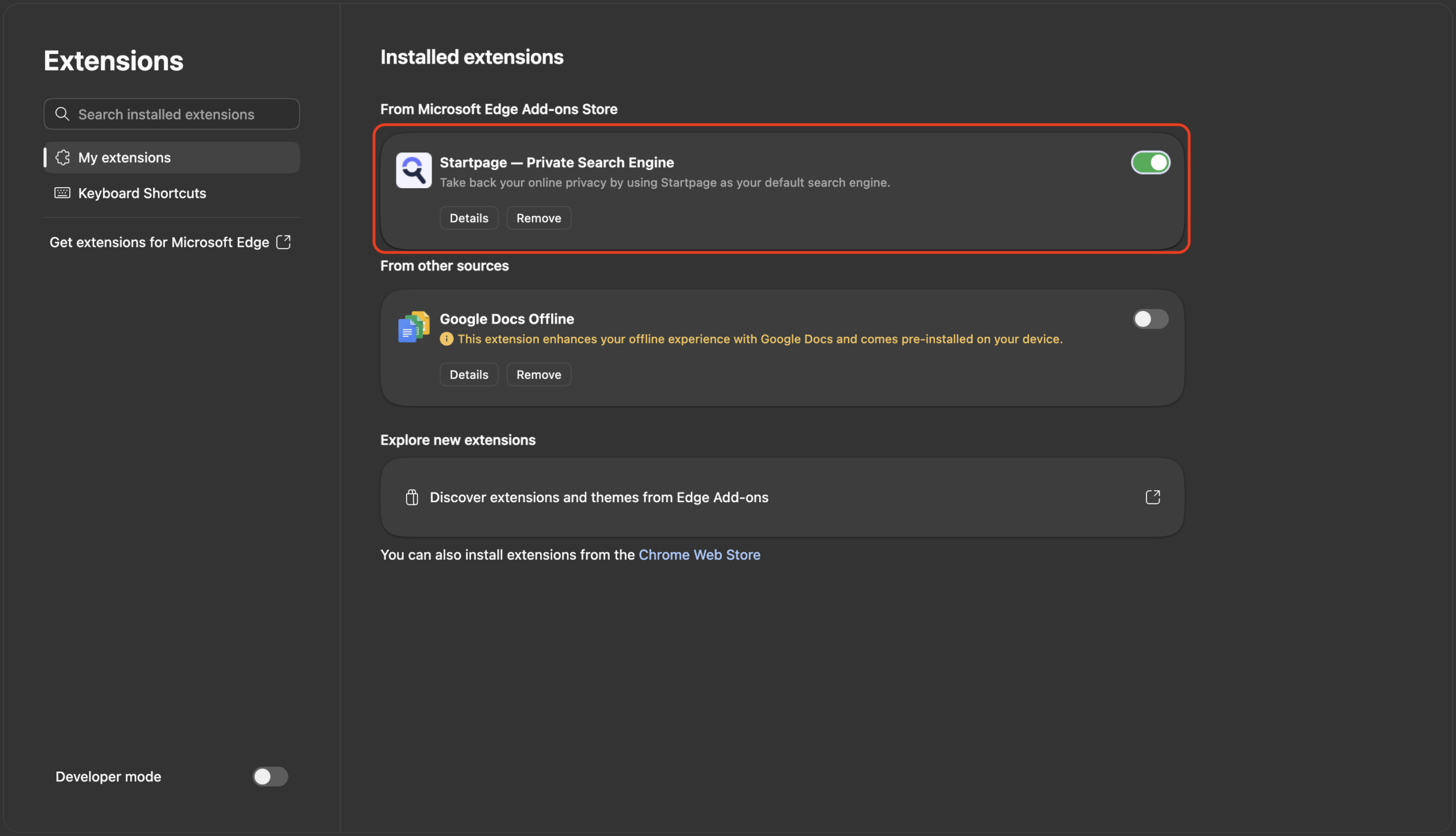
You can install the Startpage extension at the following link: Startpage — Private Search Engine – Microsoft Edge Addons → Then click on “Get” → Add extension.
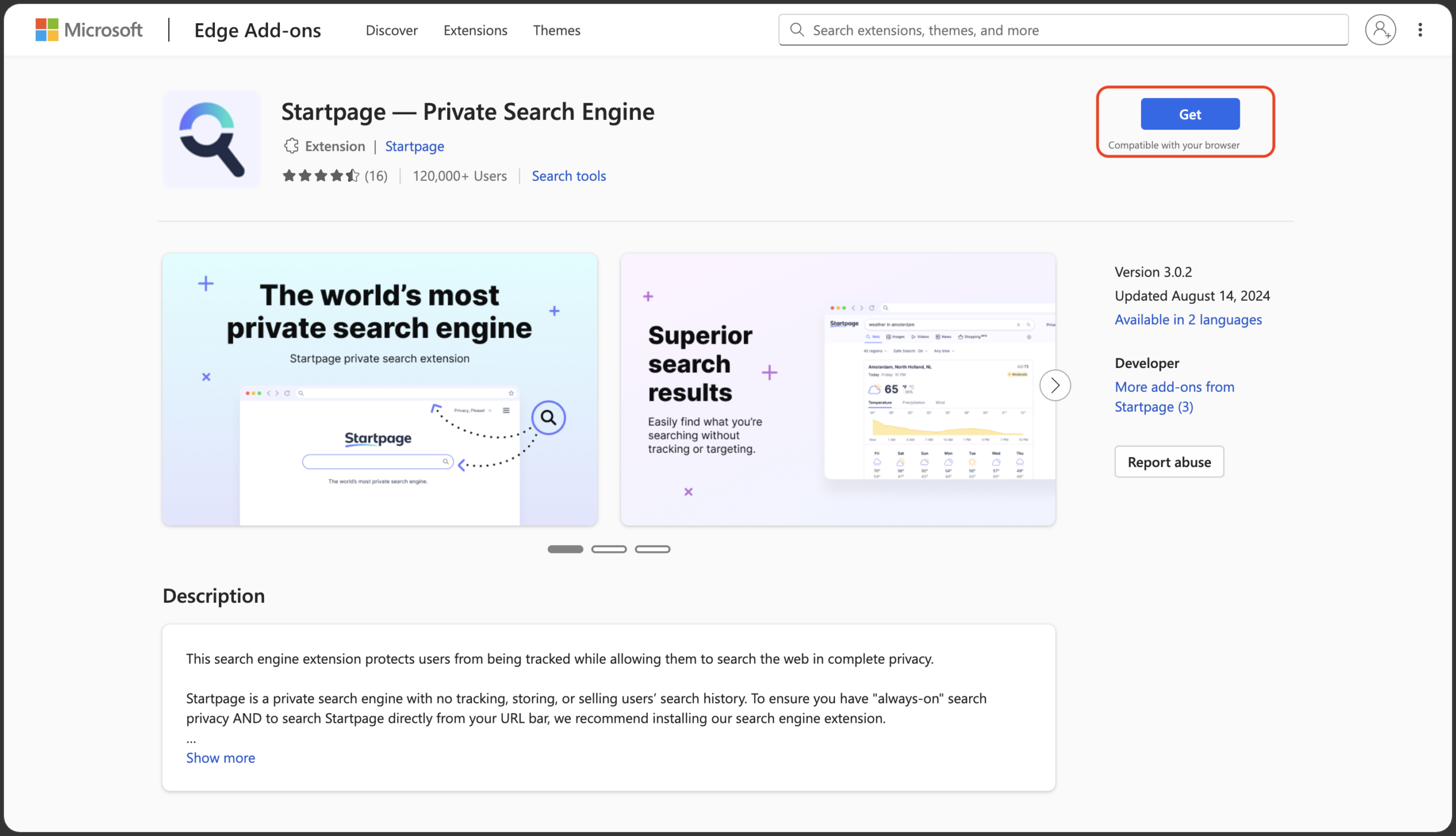
Then click the browser menu in the upper-right corner → Extensions → Manage Extensions → Enable “Startpage — Private Search Engine” extension.
4. Enabling protection against potentially unwanted apps
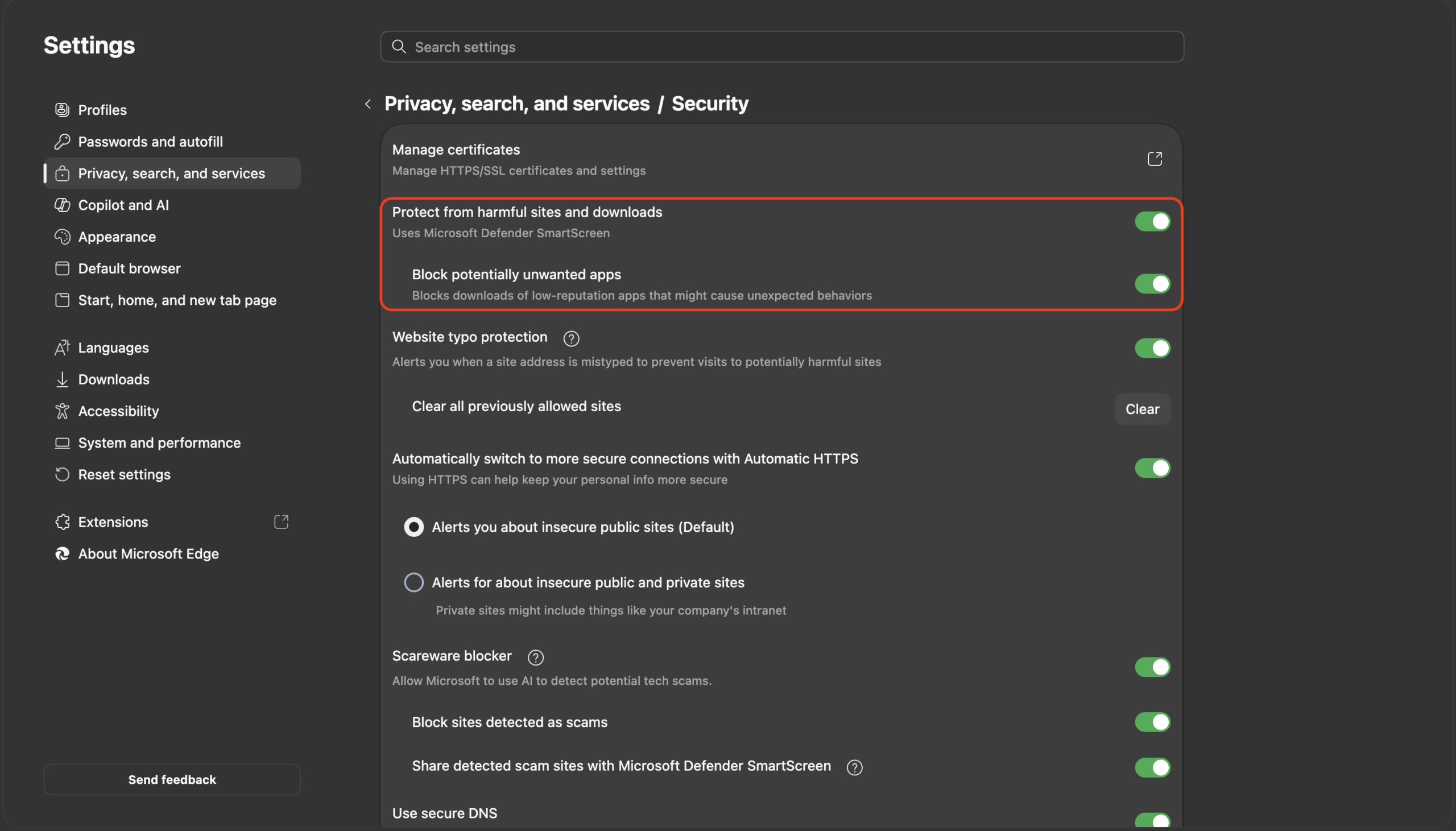
Microsoft Edge has a feature that protects against unwanted apps, which can help keep your computer safe from malicious software and apps that may compromise your privacy and security. This feature uses Microsoft Defender SmartScreen technology, which helps identify malicious apps and warns you before you download them. This significantly reduces the risk of downloading a malicious or unwanted program. This setting helps reduce the risk of an attack on your computer. Therefore, it’s important to enable the protection against unwanted apps feature in Microsoft Edge and configure it correctly.
You can enable protection against potentially unwanted applications by following these steps: Settings → Privacy, Search, and Services → Turn on “Microsoft Defender SmartScreen” and “Block potentially unwanted applications.”
5. Disabling Microsoft Rewards
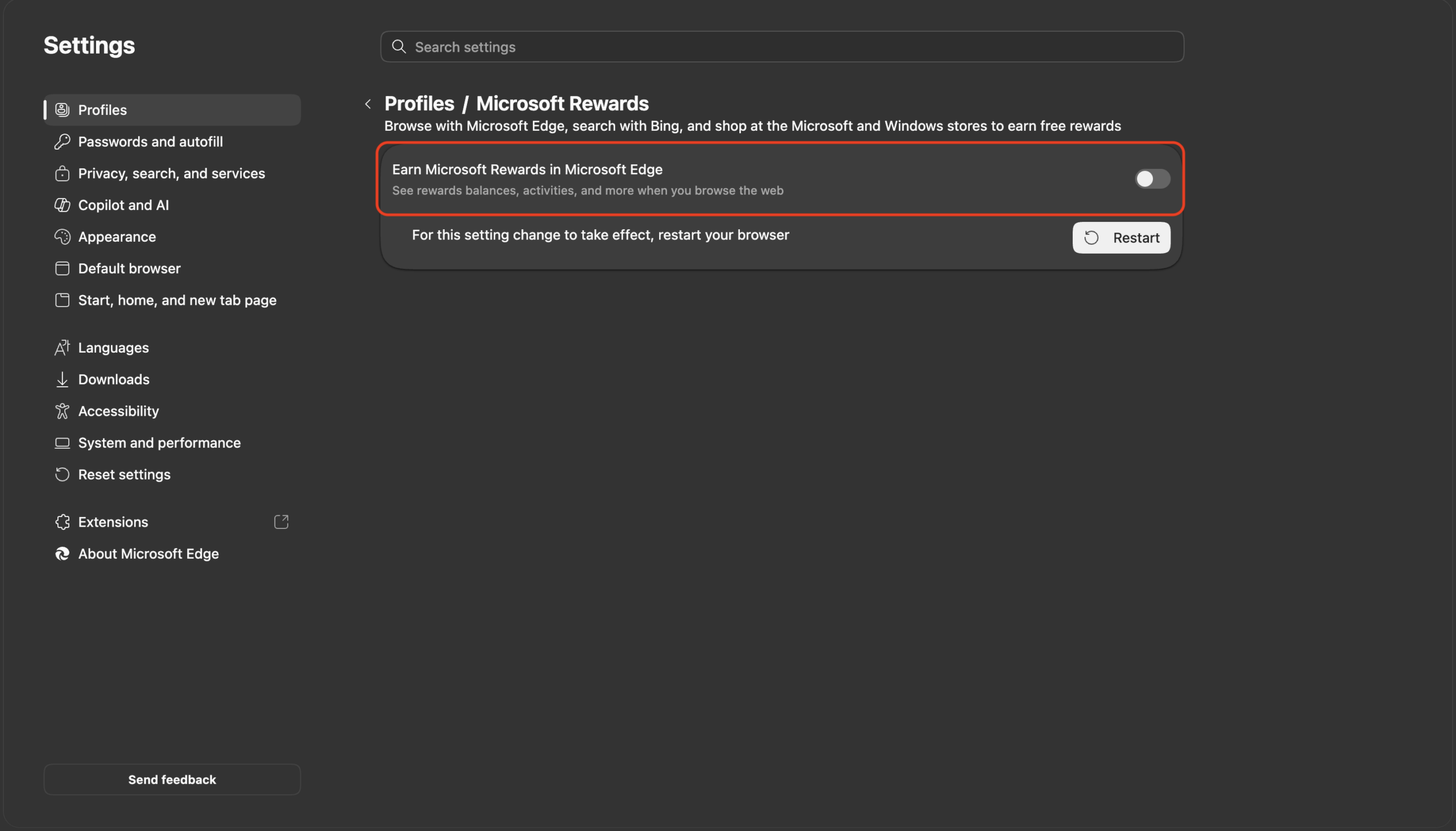
Microsoft Rewards allows Microsoft to collect a large amount of data about your online activities. This data includes, for example, your searches, web browsing, purchases, and app usage. Although Microsoft claims that your data is protected, there is still a possibility that it could be exposed to cyber threats. If you want more control over your personal data, you should consider turning off Microsoft Rewards or minimizing your use of the service.
Settings → Profiles → Microsoft Rewards → Disable “Earn Microsoft Rewards in Microsoft Edge”
6. Additional security settings in Microsoft Edge
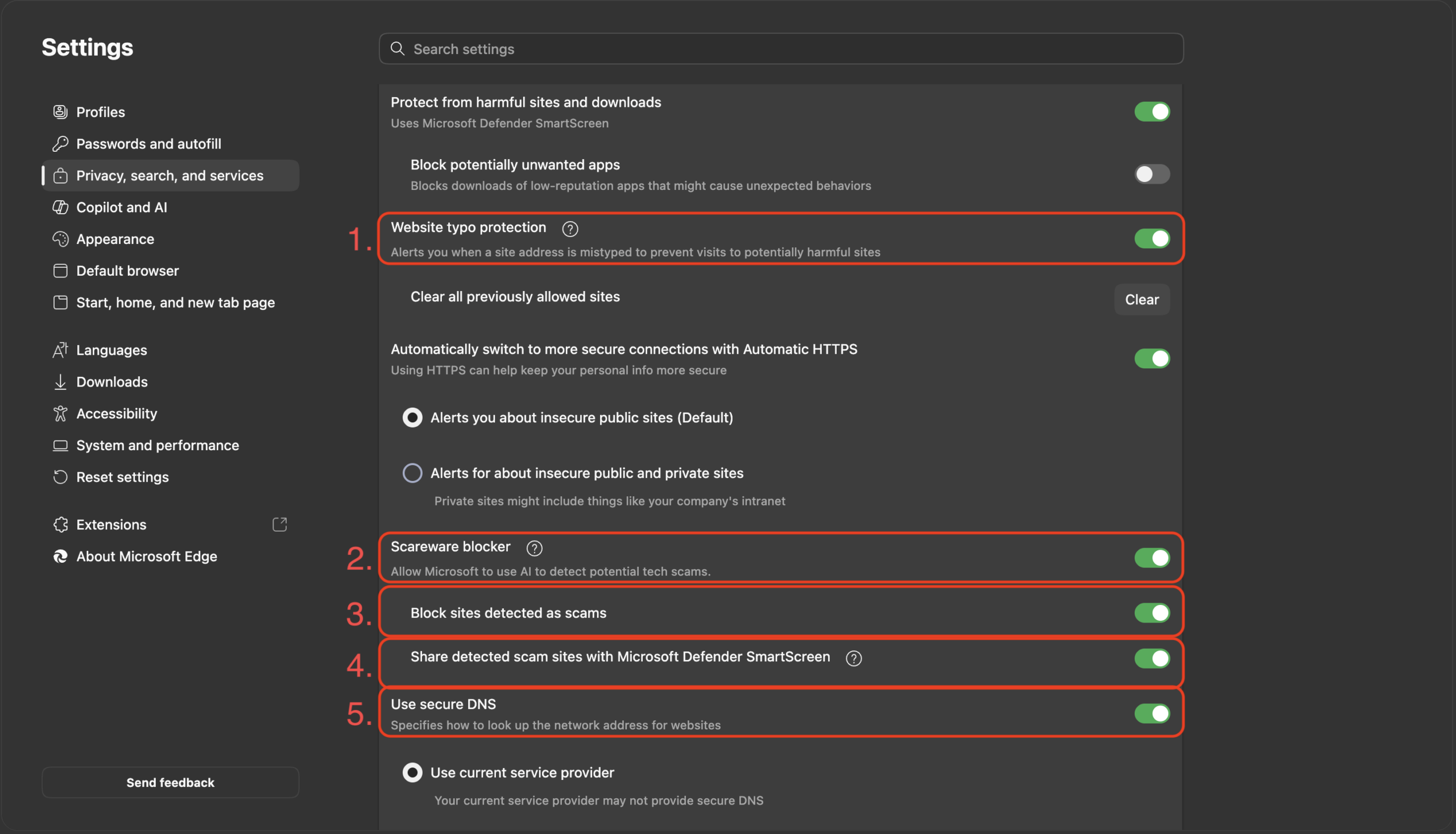
In addition to the settings already mentioned, Microsoft Edge offers the following in the section Privacy, Search, and Services → Security a few more features that help protect against fraudulent websites, phishing, and DNS manipulation. We recommend checking to make sure these features are enabled, as shown in the image below.
1. Website Typo Protection
This feature checks the entered web address and alerts the user if the address resembles another known site but was likely entered incorrectly. It helps prevent users from visiting fraudulent or malicious sites designed to mimic legitimate websites. We recommend keeping this feature enabled.
2. Scareware blocker
This feature uses Microsoft technologies, including AI, to detect potential scareware scams—websites that try to scare users with fake warnings about a virus or a computer problem and coerce them into taking a specific action. We recommend keeping this feature turned on.
3. Block sites detected as scams
If Edge identifies a website as fraudulent, this setting will prevent it from opening or alert the user to the risk. It helps protect against phishing and other online scams. We recommend keeping this option turned on.
4. Share detected scam sites with Microsoft Defender SmartScreen
With this option, Edge sends information about identified phishing sites to Microsoft Defender SmartScreen to improve phishing detection. Users should weigh the trade-off between protection and privacy.
5. Use secure DNS
Secure DNS helps protect communications when translating website names into network addresses. When using a supported provider, DNS communications can be encrypted, reducing the risk of eavesdropping or tampering. We recommend keeping this feature enabled and using a provider that supports Secure DNS.